Taxable Investment Income
In this article, we will demonstrate how to view and make adjustments to the taxable investment income generated from non-registered Financial Assets.
In this article:
- 1
-
Viewing Investment Income in the projection
You can view the assumed investment income created by non-registered investments from the Taxable Income Details page on the Planning Pages.


You can also see a breakdown of the annual Capital Gains calculation. To open the Capital Gain Details, go to the Client or Spouse's Planning Page, click the Taxable Income Details icon and then click the Capital Gain dollar value in any year of the projection.


You can toggle between asset classes in the top-right corner, and change the non-registered account (if there are multiple) and the year that you're reviewing in the top-left corner.
As you adjust the asset allocation and Portfolio Settings, you can check back on the Taxable Income Details table to see whether the resulting investment income better aligns with your client's circumstances.
- 2
-
Adjusting the asset allocation
The asset allocation for non-registered Financial Assets helps determine the investment income generated. For example, suppose your asset allocation is 10% Cash, 30% Fixed Income and 60% Equity. In that case, the client will realize a combination of Interest, Capital Gains, Canadian Dividends, and Foreign Dividends based on the customizable Return Allocations that can be set on the Portfolio Settings page as shown below.

- 3
-
Adjusting the Portfolio Settings
To open the Portfolio page, click Scenario Setup -> Settings -> Portfolio.


The Annual Portfolio Turnover setting controls how much of the portfolio is bought and sold each year to trigger Capital Gain tax. The default is 5%, which means 5% of the deferred Capital Gain on the portfolio is realized and taxed each year. Additional Capital Gains will be realized if there are withdrawals made from the account, and they may be triggered by automatic portfolio rebalancing as described below.
Equity Returns are allocated with a default of 20% Canadian Dividends, 20% Foreign Dividends, and 60% Capital Gains, as shown above. You can adjust the values as needed to align the tax assumptions in Snap with your client's circumstances. For instance, if your client doesn't receive Foreign Dividends, you can set this to 0% and allocate the 20% to Capital Gains and/or Canadian Dividends.
The Fixed Income and Cash Returns are allocated with a default of 100% Interest. You can reduce this percentage if you want to allocate some of the return to Capital Gains.
In all instances, the Capital Gains percentage is equal to 100% less the allocation to distributions (e.g., Dividends, Interest).
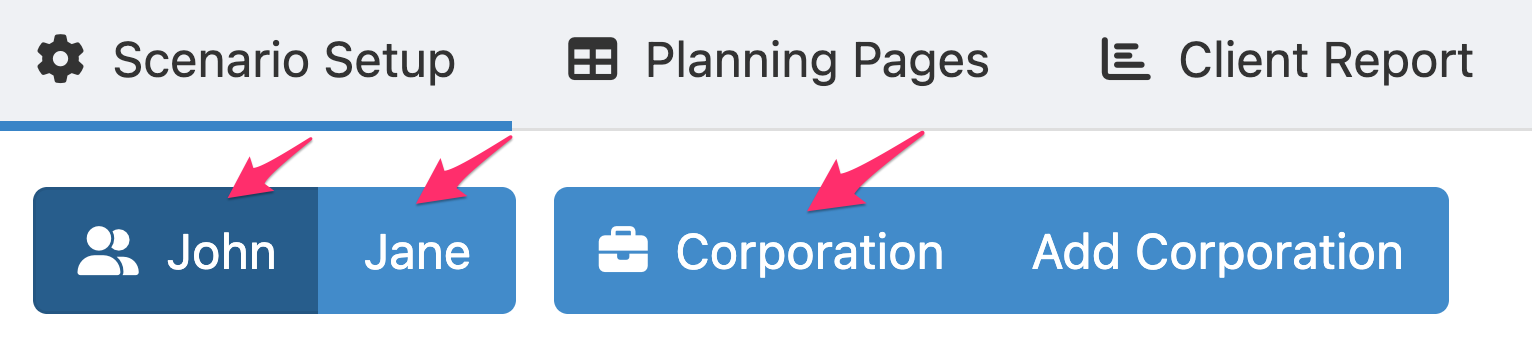
The Portfolio Settings apply to all non-registered assets owned by the individual or corporation. If you want to apply the changes to all non-registered assets throughout the projection, you'll need to update each individual and corporation separately by selecting them in the top-left corner and changing the Portfolio Settings.
- 4
-
How automatic rebalancing contributes to taxable investment income
To maintain your asset allocation over time (e.g., 10% Cash, 30% Fixed Income, 60% Equity), Snap performs automatic portfolio rebalancing each year. This is initially done using cash from distributions for the year, and if there isn't enough money to bring the portfolio back to the target, the asset that grew the most is partially sold and rebalanced into other asset classes to arrive at the specified asset allocation.
Therefore, even if you have entered a non-registered asset with 0% annual Portfolio Turnover under the Portfolio Settings, the automatic rebalancing may trigger Capital Gains.