Verifying Calls and Managing Support Access
To further protect the privacy and security of your information, we've introduced an additional verification step when our Support team needs to access your client data to assist you. This helps us confirm that we're speaking with someone who has permission to access the account and that an authorized individual has approved our team's access to the client data.
Before our Support team can view your account data, we'll need to verify your authorization using one of 3 convenient methods.
- Help -> New message: Sending a us a new message from within the application automatically grants access.
- Email verification: We'll send you an email with a secure link. Simply click the link and log in to your account to confirm the access request.
- Call verification: We can verify your authorization over the phone using a verification code.
In this article:
- 1
-
Help -> Security menu
Under Help -> Security you'll find these options:
- Call Verification: Used to confirm who is on the other end of a phone call, whether you called us or we called you.
- Access Approval: Shows who on our Support team can currently view your account and lets you revoke that access at any time.
Why we added new Security features
When you request support, we want to be sure we’re discussing your projections with the real account owner. When we call you, you should be able to be sure it’s really us. Email authorization and Call Verification give both sides an easy, reliable way to check.
- 2
-
Call Verification
| Go to Help → Call Verification |
|
|
You’ll be asked who placed the call. If you're calling Snap Projections. |
|


If you’re calling Snap Projections
- Select I’m calling Snap Projections.
- You’ll see two codes:
- Your code: Read this to the support team member. It confirms your identity.
-
Our code (optional): If you’d like to confirm you’re really speaking with Snap Projections, ask the Support team member to read this code back to you.
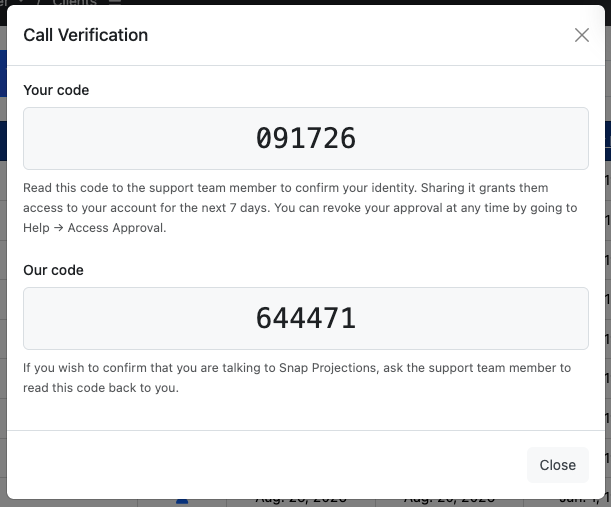
- Both codes are single-use and expire after a short time, so generate them when you’re ready to talk.
Note: Sharing your code gives our support team access to your account for 7 days. You can end this access at any time.
If Snap Projections is calling you
Please don’t share sensitive information until the caller has proven who they are.
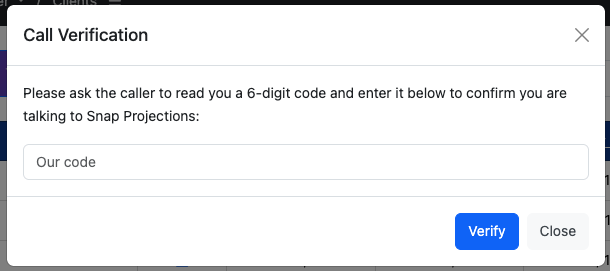
- Select Snap Projections is calling me.
-
Ask the Support team member to provide the code (6-digits), enter it in the box, then click Verify.
-
If the code matches, you’ll see the name of the Support team member you’re speaking with, along with Your code. Read this code back to them to confirm your identity.
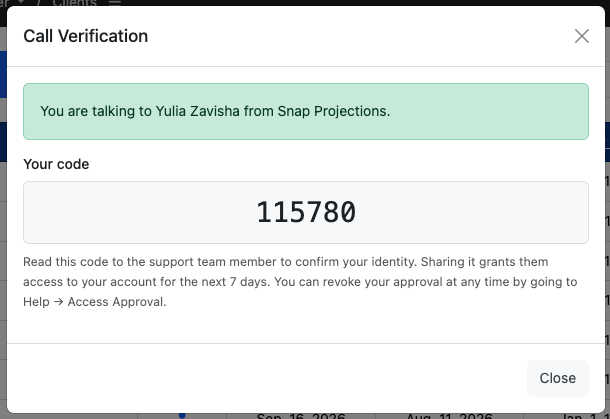
If the code doesn’t match, do not share any information. Hang up and contact us through the application under Help -> New Message or call our Support line at 1-888-758-7977. Codes you generate yourself won’t work here, and only a real code from us will pass this check.
For your security, repeated failed attempts are logged, and after 5 failed attempts in a row your account will be temporarily locked.
- 3
-
Email Verification
If our Support team receives an email sent to [email protected] we may request access to your account if this is necessary to answer your question. In this case, you'll receive an email with a secure link to log in to your account and grant access.
- 4
-
Send a New Message to automatically grant access
Select Help -> New Message to securely send our Support team a question. You can attach a file, such as a screenshot if you click the icon in the bottom right of the message. Sending this message will automatically grant the Support team access to your account for 7 days. You can revoke access at any time.
|
|
|


As a response comes from the Support team, you'll receive an email and also be able to see the response under Help -> Previous Messages.

- 5
-
Revoking access to your account
To see if the Support team currently has access to your account, select select Help -> Access Approval.
|
|
To revoke access, click the button.
|


Once revoked or if you've never granted access, the Access Approval window shows the following.
