November 7, 2024 - Release Notes - Planning page and Chart updates
| Summary: |
|---|
- Enhancements
Planning page Feature Access
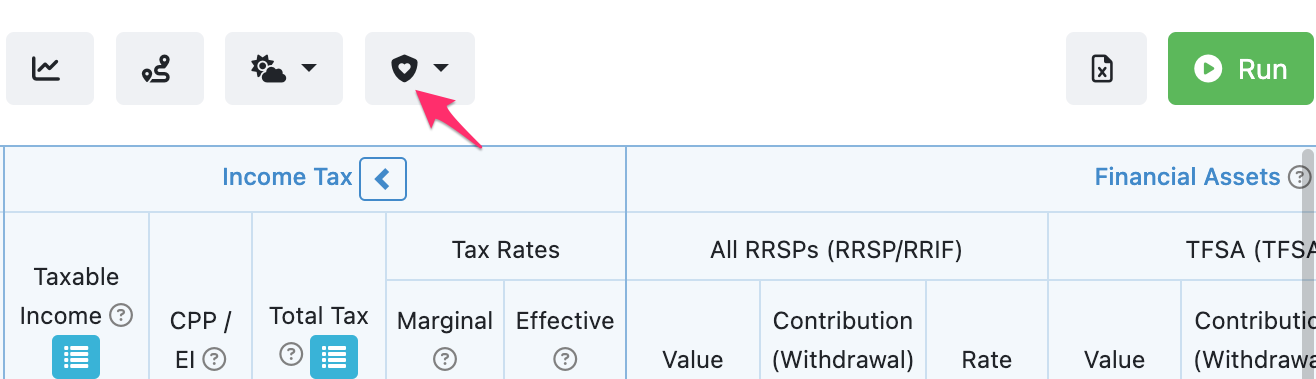
Heads up! We have moved a few buttons on the Planning page to make space for easier access to the Life Needs Analysis and Stress Testing features.

This change has adjusted the location of the Charts, Recommendations, and Excel Export buttons. All of these options are still available from the top of the Planning pages.
We're currently working on enhancements to the Life Needs Analysis tool, as well as adding Disability and Critical Insurance. We're excited to share additional announcements soon.
Depending on your screen resolution, you may only see the icons for each button at the top of the Planning page. If you'd like to adjust your sizing for Snap, you can zoom out to provide more space.
Real Dollar Charts
Throughout Snap you can access Charts to illustrate how different values will change in your projections over time. You can now toggle between Nominal (actual) and Real (current) Dollars for all charts (including those in the Snapshots pages of the Client Report).
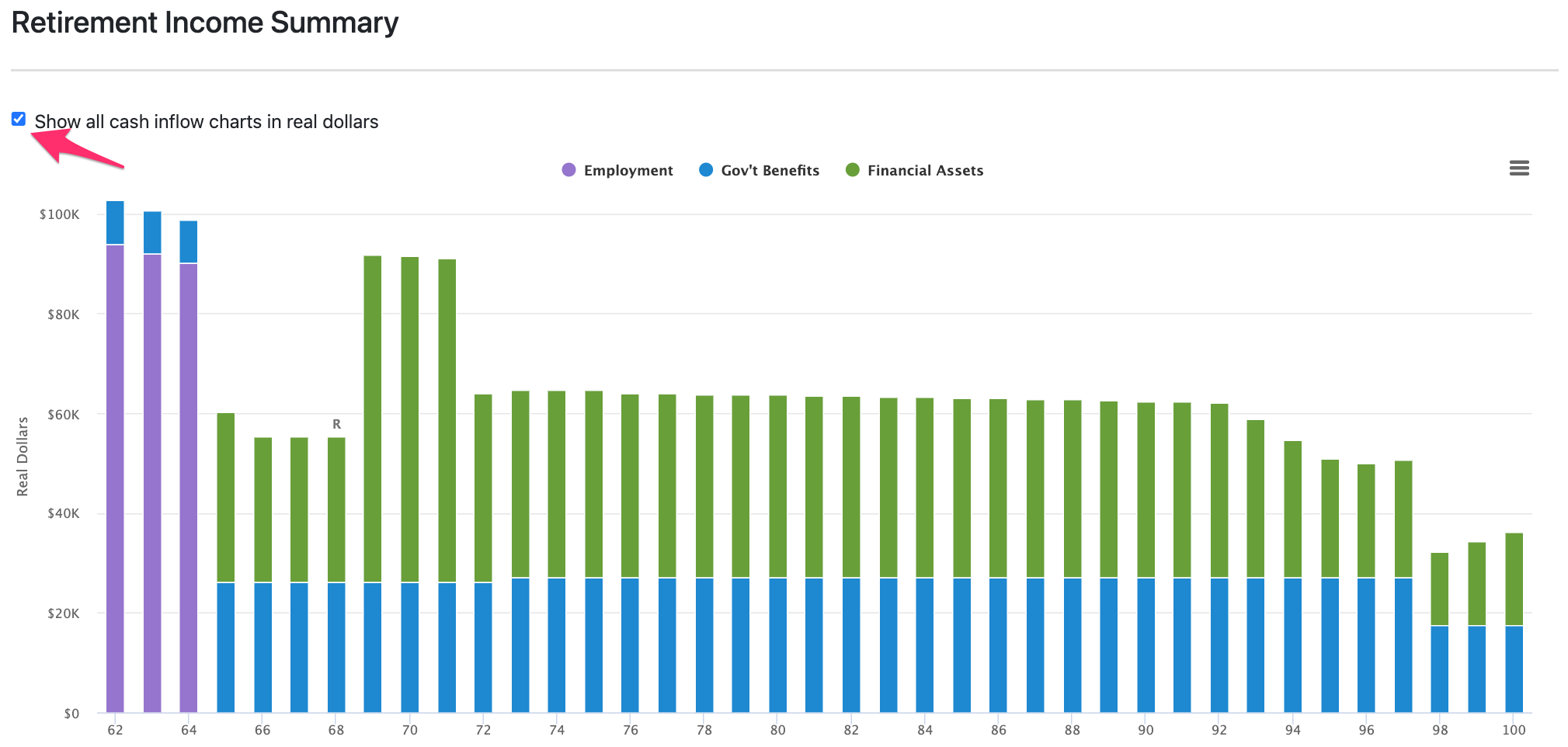
If you adjust the scale of a Chart on the Planning page or in the Client Report, all other charts of the same type (e.g., Net Worth, Cash Inflows, Cash Outflows) will be adjusted as well to provide a consistent reference point throughout the software.
Preventing Input Errors
We've added several soft warnings on input fields to help prevent accidentally entering a value that may not be desired. For instance, users will occasionally enter an Indexing rate for DBPPs of 70% (which they intend to represent a 70% adjustment for cost of living). However, the input field is for the expected annual increase, which should be 70% of the General Inflation rate (often 2.1%) for a total of ~1.5%. You can still proceed with these rates applied, but Snap will warn you that they may be higher than the field intends.

| Back to top |