Financial Recommendations
Clients often have questions that include "When should I start taking my CPP and OAS?", "Should I withdraw from my non-registered account or RRSP first?". The Financial Recommendations feature will help you quickly answer these questions by providing options to adjust your client's CPP/QPP Start Age, OAS Start Age, withdrawal strategy, and more.
In this article:
- Video overview
- Feature summary
- Accessing the Financial Recommendations feature
- Scenario summary
- CPP/QPP Start Age
- OAS Start Age
- Taxable Income Targeting
- TFSA Maximization
- Contribution Order
- Withdrawal Order
- Choosing an optimization age
- Choosing a calculation mode
- Calculating an optimal strategy
- Important notes and best practices
- 1
-
Video overview
Here is a 12-minute video overview to see the feature in action.
- 2
-
Feature summary
Your clients must make many decisions that will impact their financial outcomes. When to take CPP/QPP and OAS, what accounts to withdraw from, etc. The combination of these decisions creates many possible paths with different pros and cons for the client. The Financial Recommendations feature automatically tests a range of possible strategies to help improve your client's outcomes.
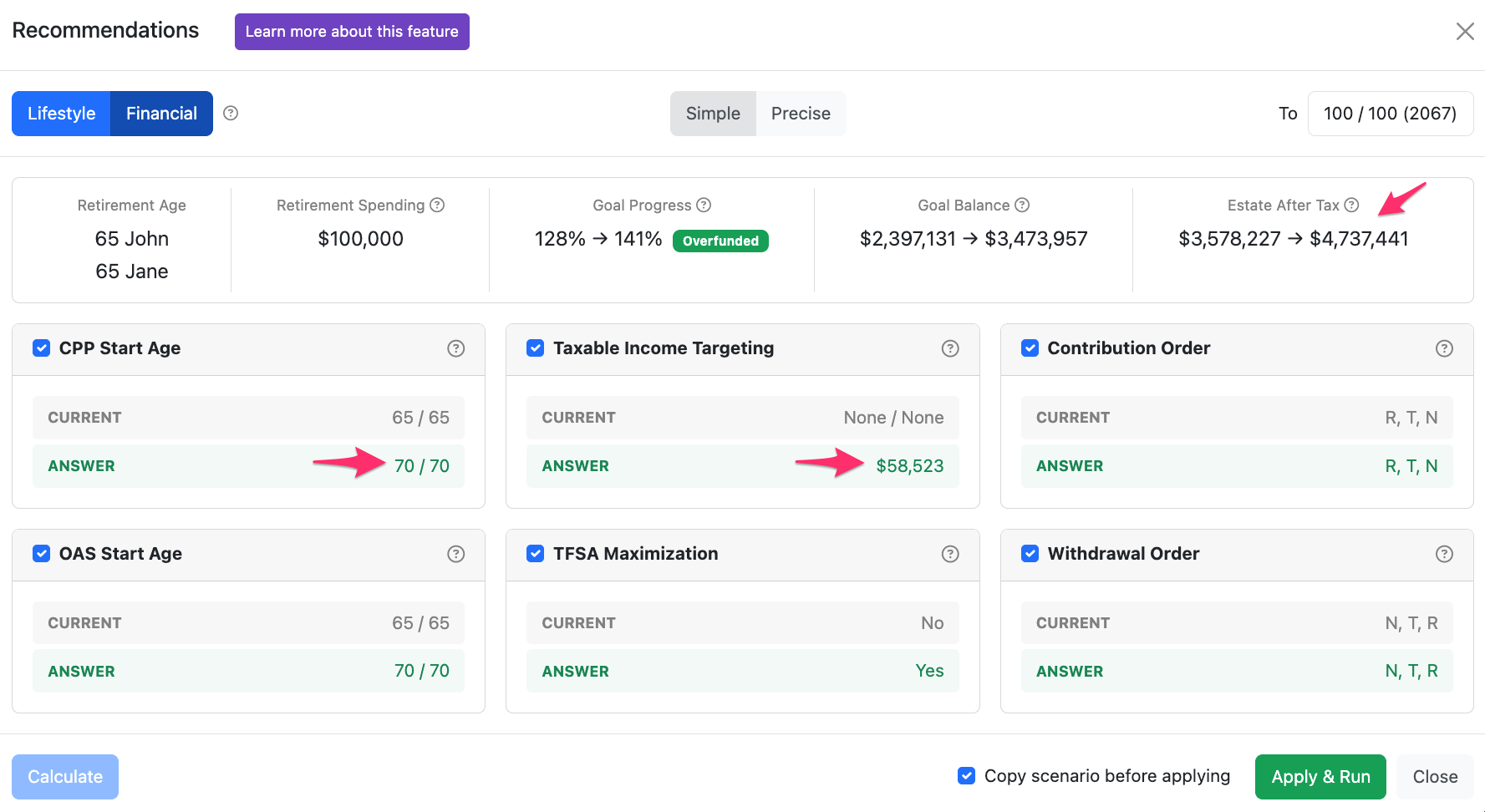
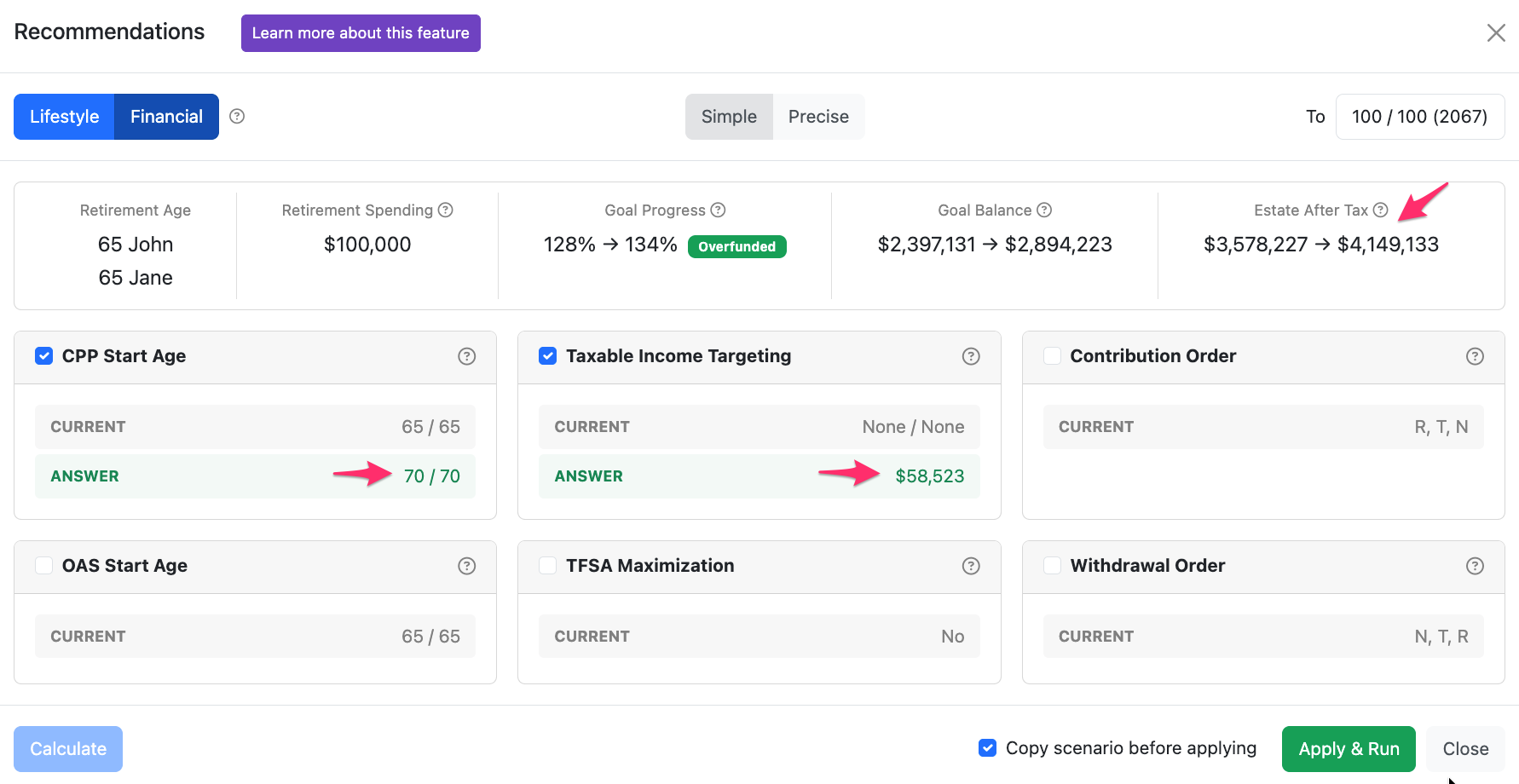
In this example, by deferring CPP and OAS to age 70, realizing personal Taxable Income of ~$58,523 (real dollars) each per year, and toping up their TFSAs from non-registered accounts, the client can increase their expected Estate After Tax at the end of the projection by 32% ($1,160,246).
You can then choose to Apply & Run the changes on your current scenario, or create a copied version with the recommended strategies for comparison.
When you open the Financial Recommendations modal, the standard approach is to simply click Calculate and then Apply & Run (while leaving the box checked to Copy scenario before applying). Similar to other tools in Snap, while it's designed to be easy to use, there are lots of customizable options to best meet your needs. You can:
- Deselect settings (e.g., CPP Start Age) if you don't want them considered in the optimization.
- Select the age that you want to maximize the Estate After Tax as of.
- Choose which calculation mode to use.
The remainder of this article outlines how to use this tool to its full potential.
- 3
-
Accessing the Financial Recommendations feature
Once you've completed the Scenario Setup data entry and your initial Planning Page adjustments (e.g., entering contributions to investment accounts), you can click Recommendations just above the projections table in the center of the Planning Page and then click Financial Recommendations.
There are two categories of Recommendations in Snap.
- Lifestyle Recommendations (outlined in a separate article) are related to decisions the client can make that impact their lifestyle. These decisions include how much to save while working, when to retire, and how much to spend in retirement. The goal of the feature is to find the best lifestyle outcome (e.g., earliest retirement age, highest spending level) while keeping the projection fully funded.
- Financial Recommendations (outlined in this article) are related to decisions the client can make without impacting their lifestyle. These decisions include when to take CPP/QPP and OAS and where to contribute and withdraw money over time. The goal of the feature is to find the highest Estate After Tax in your target year without impacting their lifestyle.
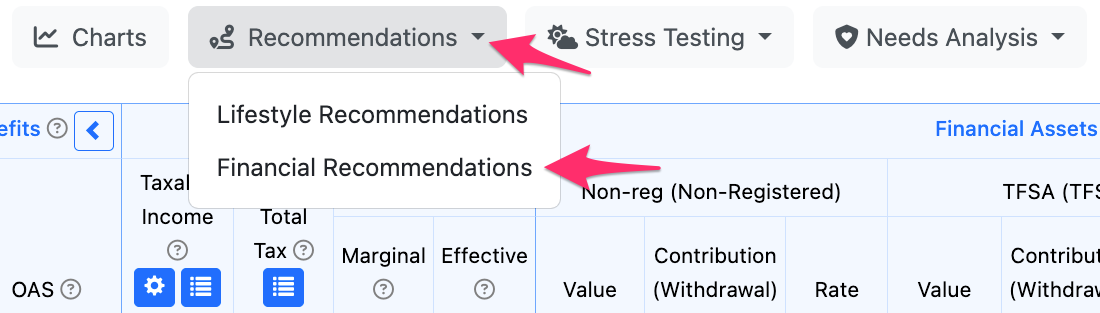
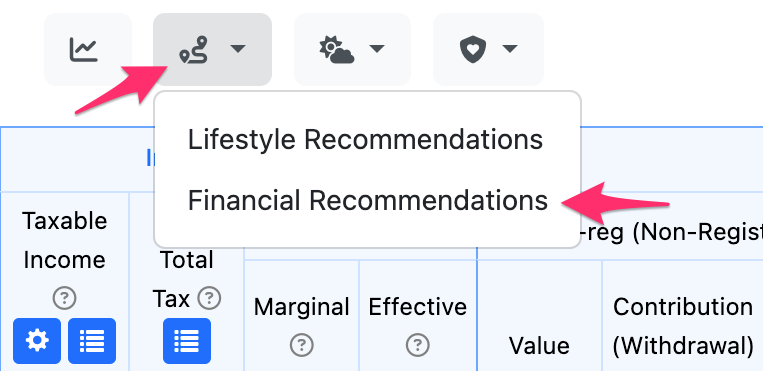
If your Planning Page has a lower resolution, or your window is smaller, the buttons will be displayed as icons. Click the button with the Recommendations symbol in the same location and then click Financial Recommendations.
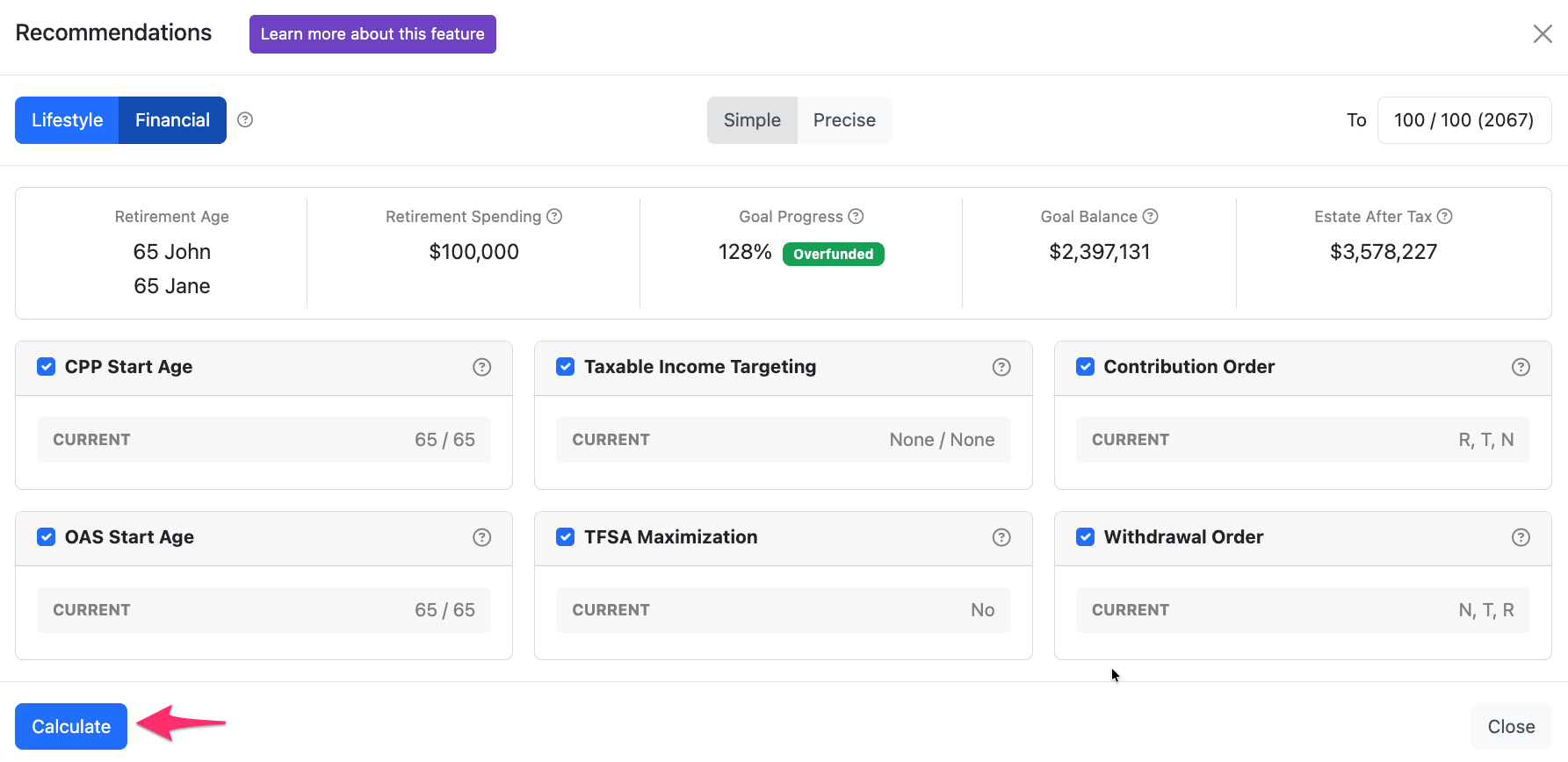
The Financial Recommendations modal provides summary information about the projection, including the Retirement Age, Retirement Spending, Goal Progress (how much of the spending is funded through personal net liquid assets), Goal Balance (the remaining personal net liquid assets), and Estate After Tax. Below the summary metrics, you can select which decisions you'd like to modify to maximize the Estate After Tax at your target age.
Once you've selected Calculate and you see the adjustments that would be required (the new CPP/QPP Start Age, OAS Start Age, Taxable Income Targeting, Contribution Order, and Withdrawal Order), you can decide if you'd like to Apply & Run to apply the changes to the current plan or a copied version.
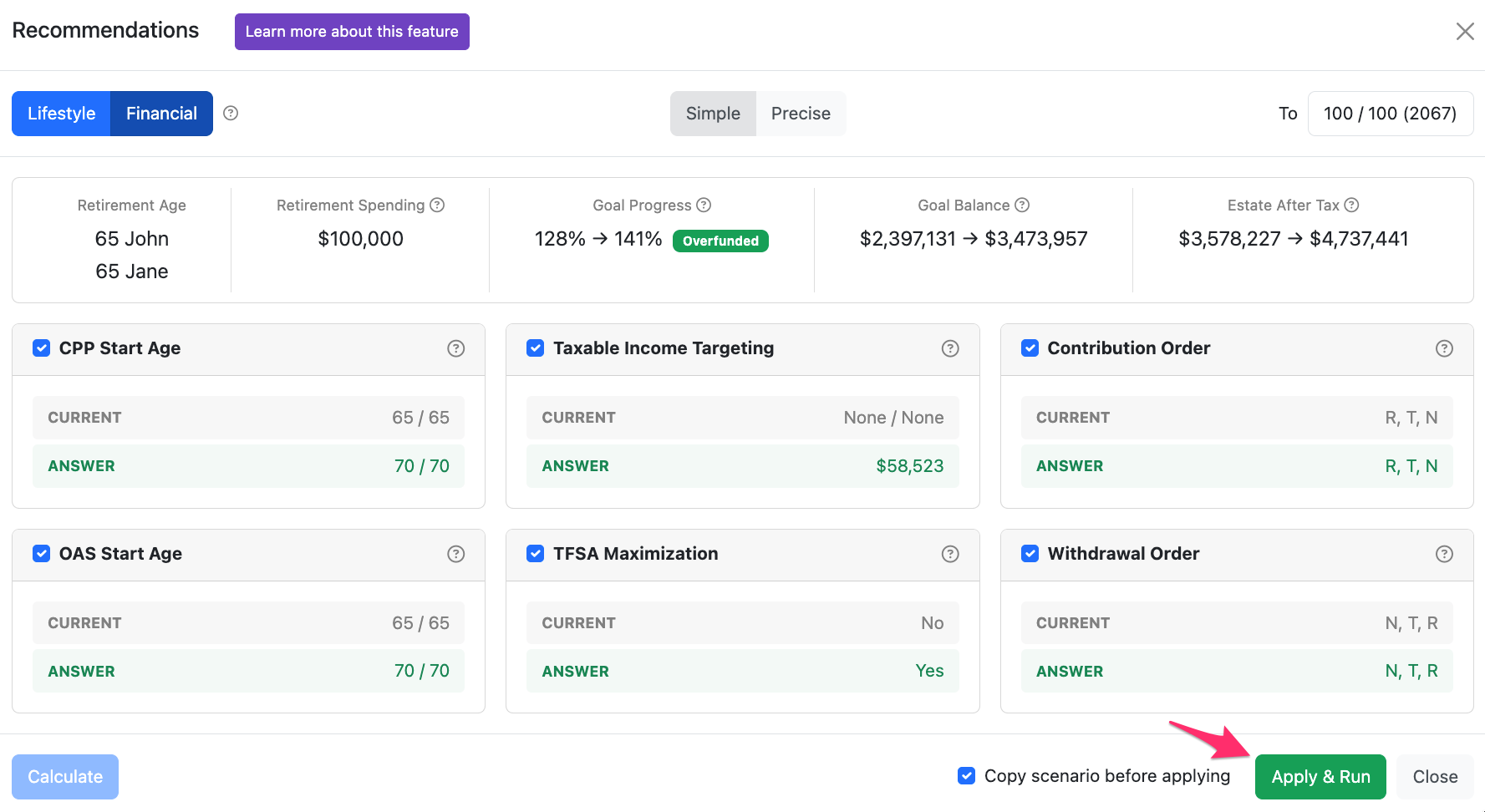
NOTE: Once you Apply & Run the recommendations to your plan, your projection will be changed. There is no automatic way to revert to your previous version. Therefore, it is highly recommended that you leave the Copy scenario before applying box checked or copy your existing plan first so that you can compare the two plans and your base plan is not lost.
You can uncheck and recheck the box next to Apply & Run to indicate that you'd like to copy your existing plan before applying any of the changes.

- 4
-
Scenario summary
The top section of the Financial Recommendations feature is an overview of the projection, including the Retirement Age, Retirement Spending, Goal Progress, Goal Balance, and Estate After Tax.
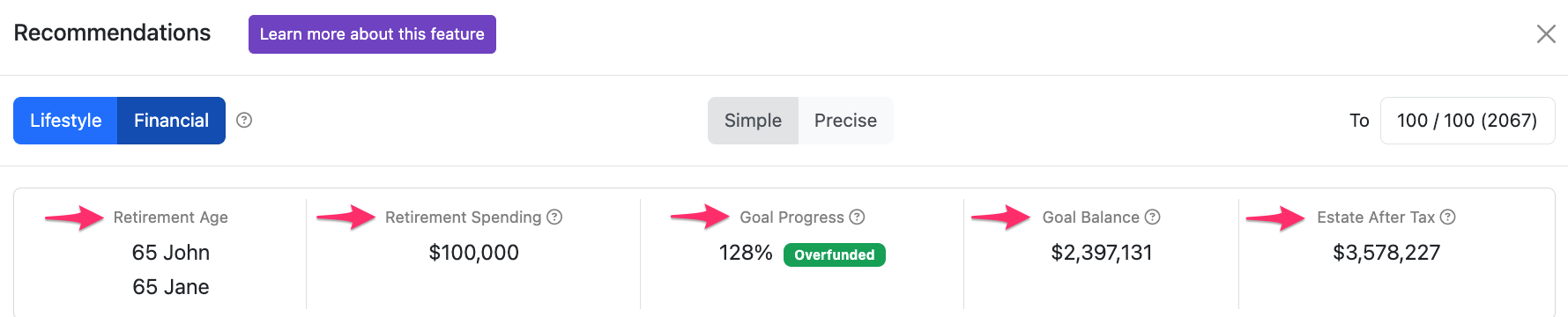
It's not possible to directly change these numbers from the modal. You can change the Retirement Age on the Scenario Setup -> General page. You can change the target Retirement Spending by adjusting the Base Expenses on the Scenario Setup -> Expenses page or directly on the Planning Page. The Retirement Spending shows the average combined Base Expenses (in real dollars) beginning in the first year that either spouse is considered retired.
The Goal Progress represents how much of the spending is funded through personal net liquid assets.
The Goal Balance represents any remaining personal net liquid assets at the end of the projection, or how much has been borrowed personally if it's negative.
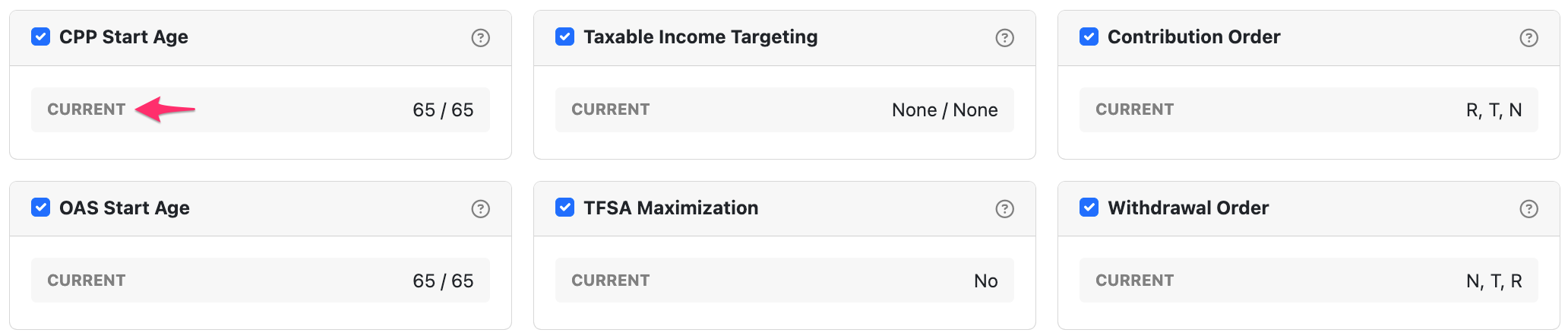
The bottom section provides decisions that can be changed to maximize the Estate After Tax. These decisions include CPP/QPP and OAS Start Age, Taxable Income Targeting, TFSA Maximization, Contribution and Withdrawal Order. The value for each setting in your existing scenario is displayed in the Current section.
- 5
-
CPP/QPP Start Age
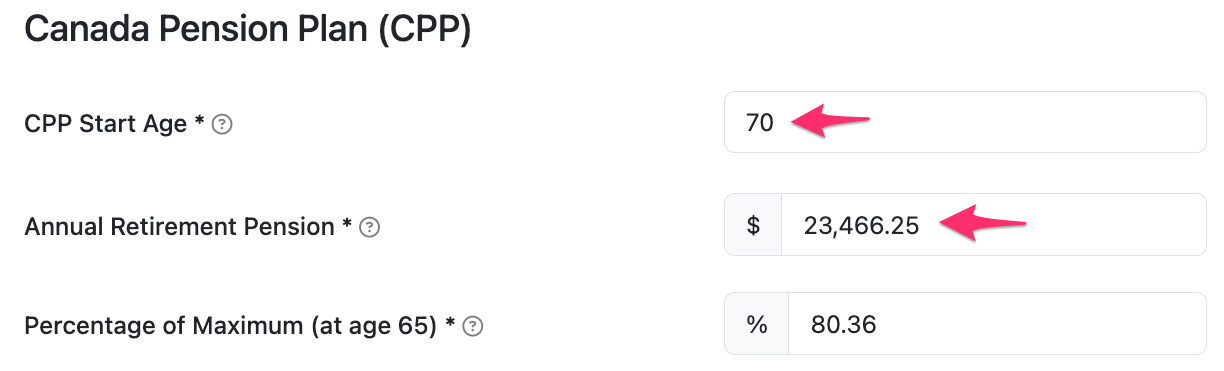
The CPP/QPP Start Age recommendation considers alternative Start Age assumptions to see whether taking the benefit earlier or later would improve the client's outcomes. If the client is already receiving CPP/QPP as of the first year in the projection, Snap will not consider alternative ages. If the client hasn't yet started taking their benefit and you want Snap to consider alternative Start Ages, you'll need to change the Start Age on the Scenario Setup -> Gov't Benefits page to the second year of the projection or later.
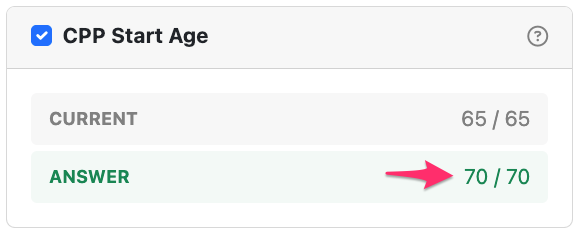
In this example, the clients are best off deferring CPP to age 70. As with all recommendations, the values will depend on the client's unique circumstances (e.g., Retirement Age, rates of return, projection length) and your settings within the Financial Recommendations modal.
If you apply the recommendation to your scenario, Snap will adjust the CPP/QPP Start Age on the Scenario Setup -> Gov't Benefits page. It will also automatically adjust the expected dollar value based on any reductions (from starting early) or increases (from deferral).
- 6
-
OAS Start Age
The OAS Start Age recommendation considers alternative Start Age assumptions to see whether taking the benefit earlier or later would improve the client's outcomes. If the client is already receiving OAS as of the first year in the projection, Snap will not consider alternative ages. If the client hasn't yet started taking their benefit and you want Snap to consider alternative Start Ages, you'll need to change the Start Age on the Scenario Setup -> Gov't Benefits page to the second year of the projection or later.
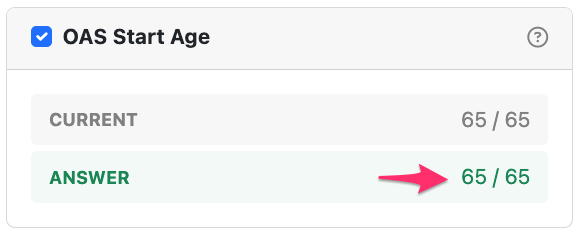
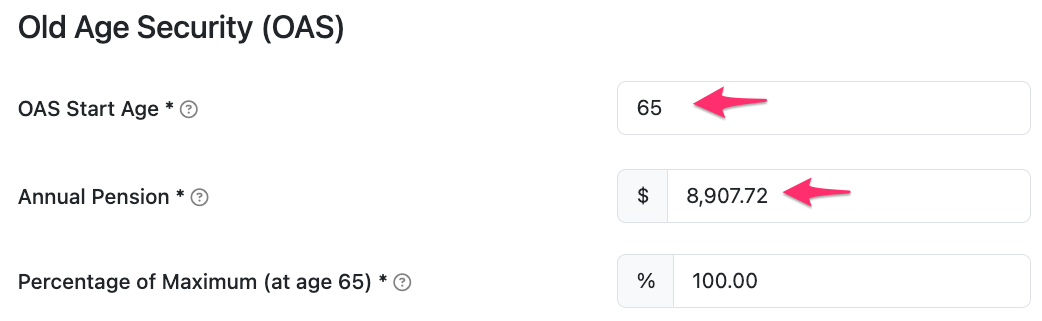
In this example, the clients are best off taking OAS at 65 as planned. As with all recommendations, the values will depend on the client's unique circumstances (e.g., Retirement Age, rates of return, projection length) and your settings within the Financial Recommendations modal.
If you apply the recommendation to your scenario, Snap will adjust the OAS Start Age on the Scenario Setup -> Gov't Benefits page. It will also automatically adjust the expected dollar value based on any deferral benefits.
- 7
-
Taxable Income Targeting
The Taxable Income Targeting recommendation considers whether your clients will be best to target a specific level of Taxable Income on an annual basis, and if so, what level of income to target. This strategy considers different marginal tax thresholds to smooth out and reduce taxes payable.
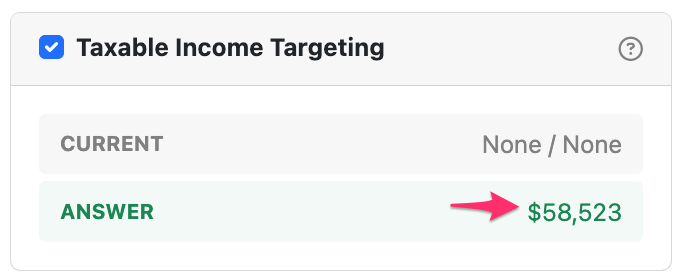
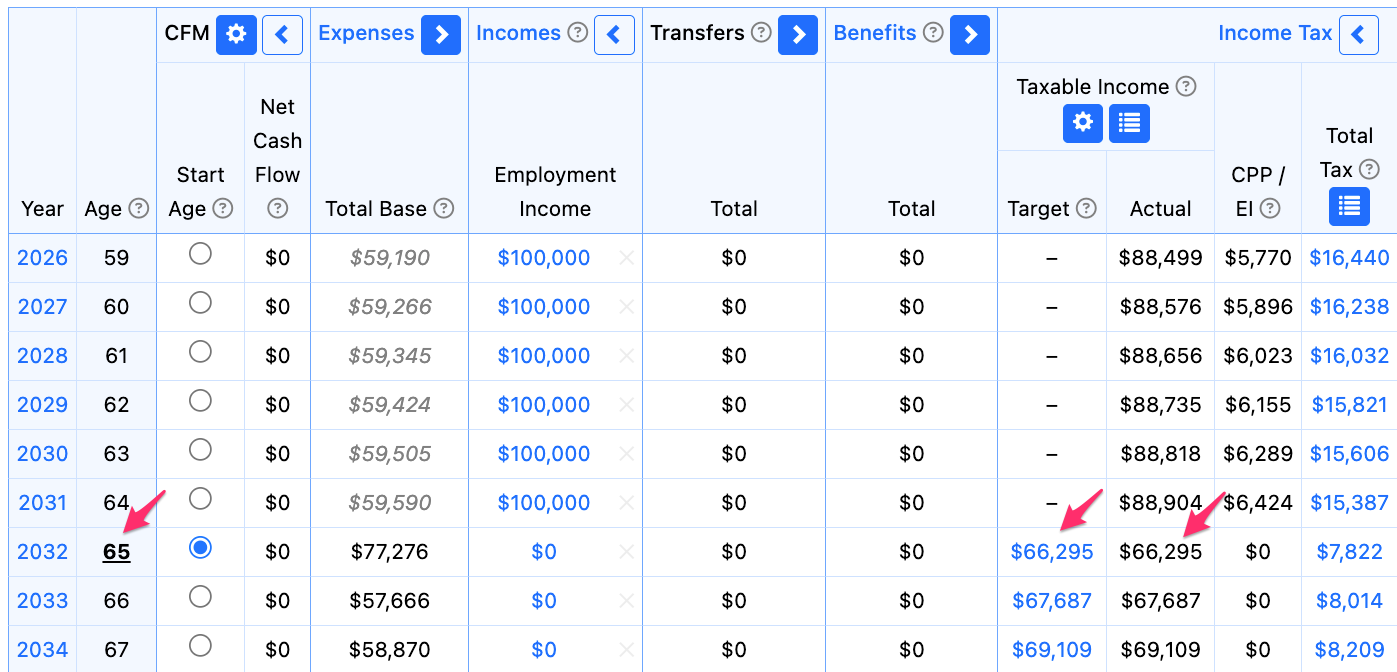
In this example, the clients are best off realizing personal Taxable Income of ~$58,523 (real dollars) each per year. This will use up the full 22% marginal tax bracket in their province of Alberta. As with all recommendations, the values will depend on the client's unique circumstances (e.g., Retirement Age, rates of return, projection length) and your settings within the Financial Recommendations modal.
If you apply the recommendation to your scenario, Snap will use the Taxable Income Targeting feature to achieve this Taxable Income Target to the extent it's possible in the projection. The Taxable Income Target begins in the first year that either client is considered retired and continues for the remainder of the projection. The recommendation is in real dollars, and Snap will automatically index it for inflation for each year of the projection. For joint scenarios, the same Taxable Income Target is applied to each spouse.
- 8
-
TFSA Maximization
The TFSA Maximization recommendation considers whether the client would be best to transfer money from their non-registered assets to their TFSAs each year.
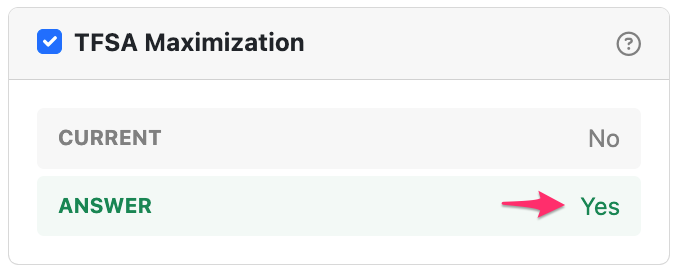
In this example, the clients are best off topping up their TFSAs from non-registered accounts. As with all recommendations, the values will depend on the client's unique circumstances (e.g., Retirement Age, rates of return, projection length) and your settings within the Financial Recommendations modal.
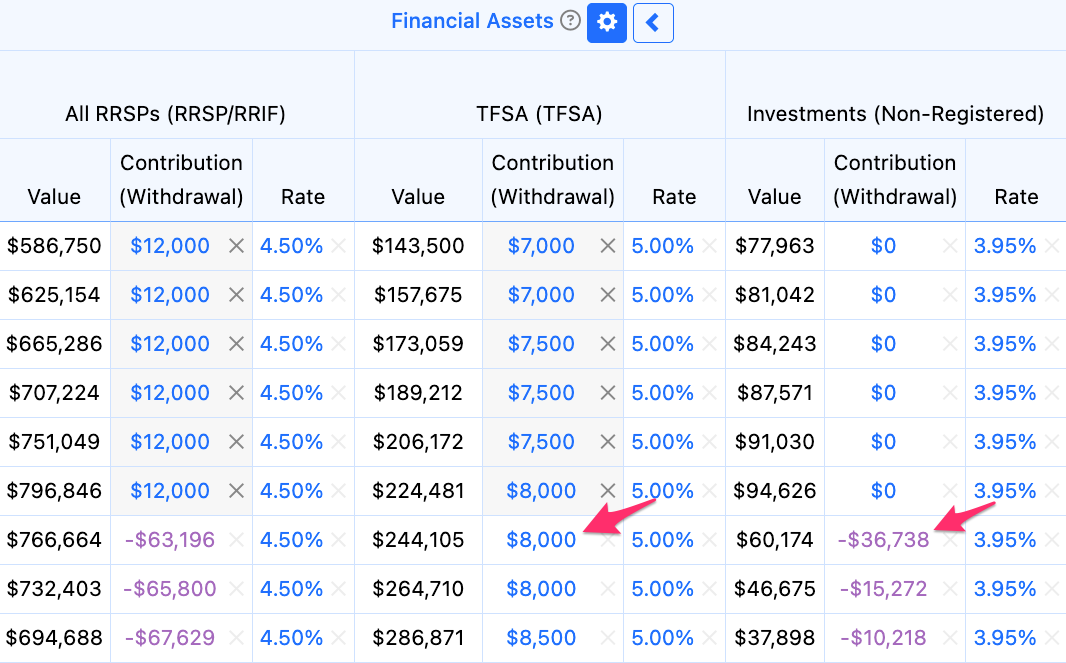
If you apply the recommendation to your scenario, Snap will use the Automatic TFSA Top Up feature to achieve this. The feature is turned on automatically on the Scenario Setup -> Assets -> TFSA page. Snap will then transfer money from non-registered accounts to TFSAs when there are balances and contributions room available.
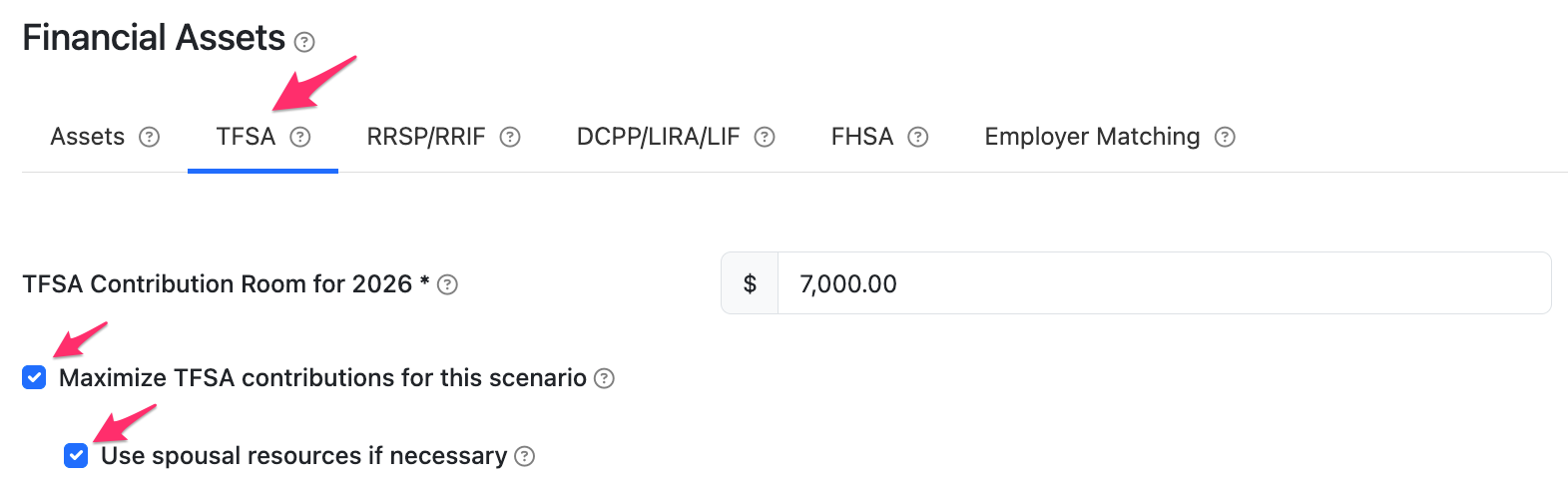
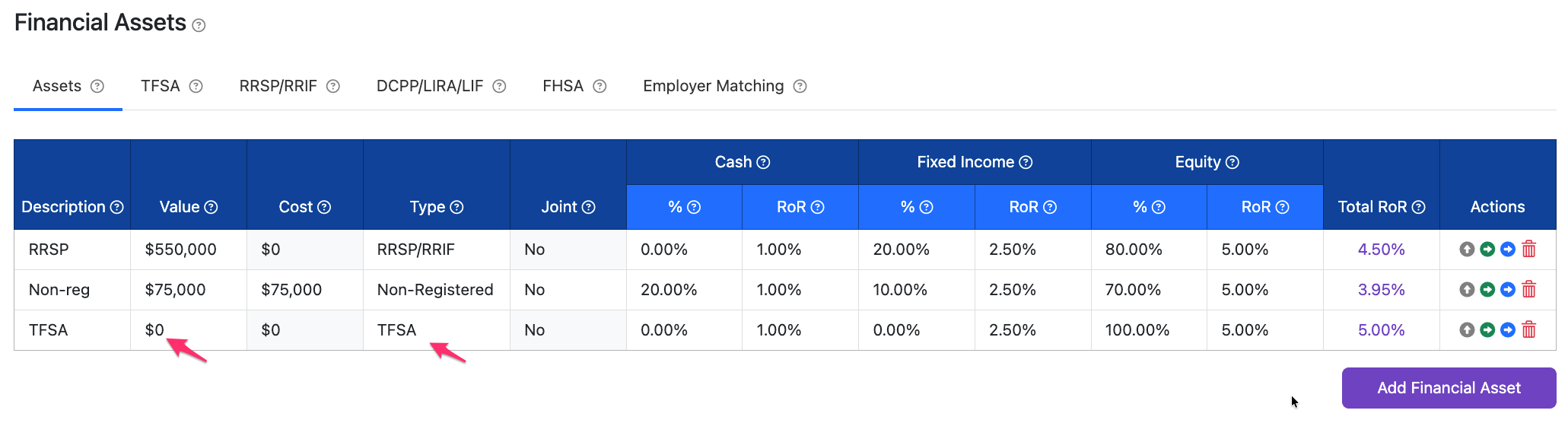
If your client doesn't already have a TFSA in the projection, you can add a $0 account on the Scenario Setup -> Assets page.
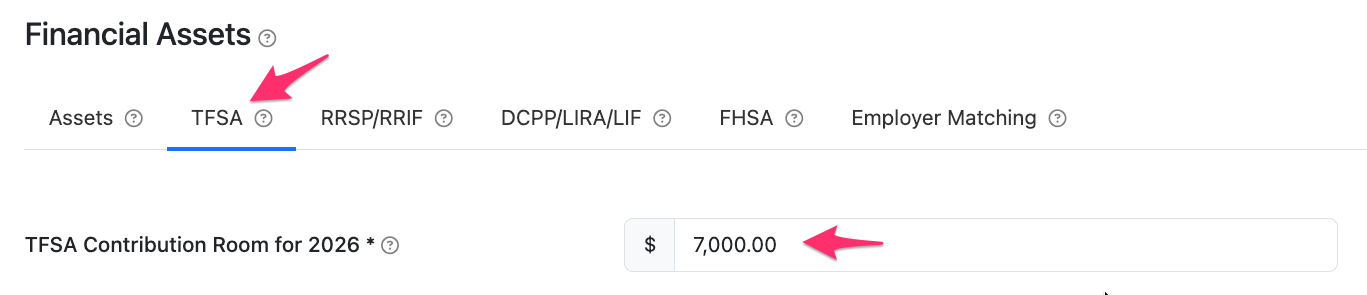
You can also adjust any carry forward Contribution Room on the TFSA tab.
- 9
-
Contribution Order
The Contribution Order recommendation considers alternative priorities for when to contribute to different Financial Assets.
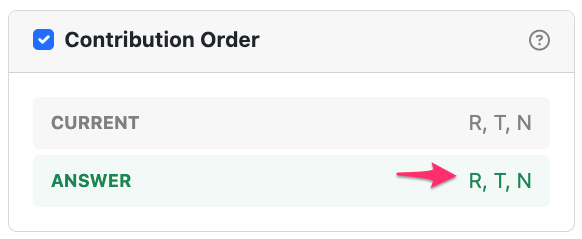
In this example, the clients are best off leaving the order at the default value (i.e., R, T, N). This is to contribute to RRSPs first, then TFSAs, and then non-registered accounts. As with all recommendations, the values will depend on the client's unique circumstances (e.g., Retirement Age, projection length) and your settings within the Financial Recommendations modal.
If you apply the recommendation to your scenario, Snap will use the Contribution and Withdrawal Order columns to achieve this. The Order columns are used to adjust the Contribution Order to the recommended value for all years beginning in the first year that either client is considered retired, or the first year that the Cash Flow Management (CFM) is turned on, whichever is later.
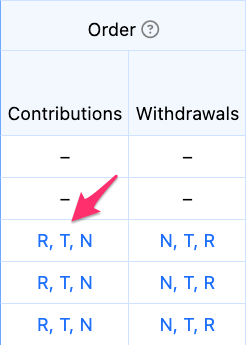
If the Order columns are turned off in your original scenario, and the recommended Orders are the default, then the Order columns will remain disabled in the recommended scenario for simplicity.
- 10
-
Withdrawal Order
The Withdrawal Order recommendation considers alternative priorities for when to withdraw from different Financial Assets.
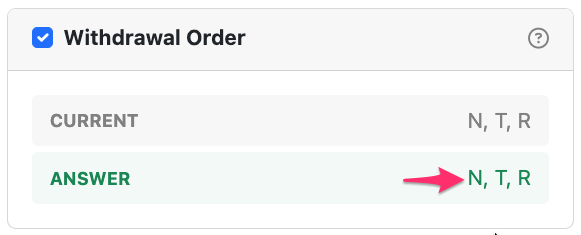
In this example, the clients are best off leaving the order at the default value (i.e., N, T, R). This is to withdraw from non-registered accounts first, then TFSAs, and then RRSPs. As with all recommendations, the values will depend on the client's unique circumstances (e.g., Retirement Age, projection length) and your settings within the Financial Recommendations modal.
If you apply the recommendation to your scenario, Snap will use the Contribution and Withdrawal Order columns to achieve this. The Order columns are used to adjust the Withdrawal Order to the recommended value for all years beginning in the first year that either client is considered retired, or the first year that the Cash Flow Management (CFM) is turned on, whichever is later.
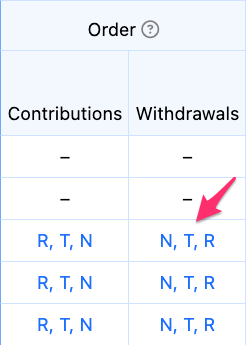
If the Order columns are turned off in your original scenario, and the recommended Orders are the default, then the Order columns will remain disabled in the recommended scenario for simplicity.
- 11
-
Choosing an optimization age
By default, the Financial Recommendations feature finds the strategy that maximizes the client's Estate After Tax in the final year of the projection. The Estate After Tax is excellent for comparing options because it incorporates all of the differences between the strategies (e.g., the level of government benefits, taxes payable while alive, the future tax liability of assets).
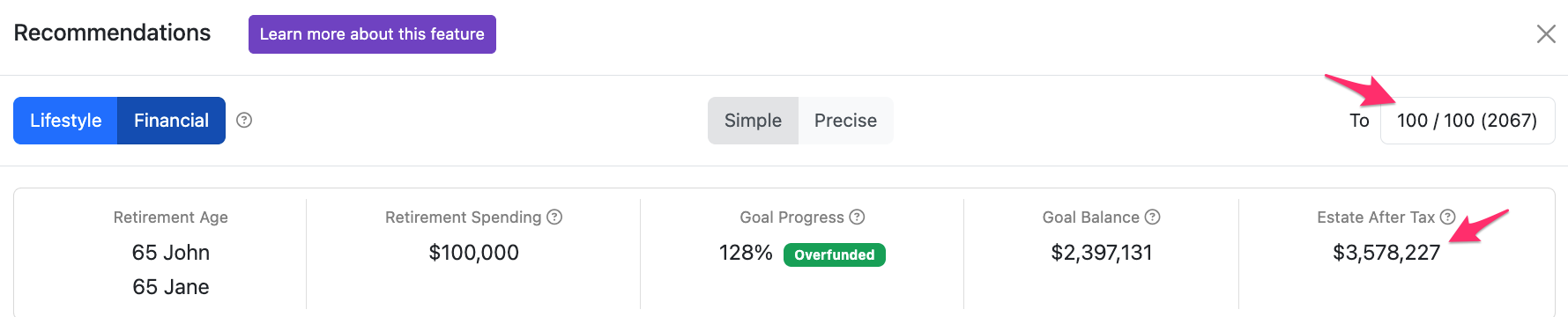
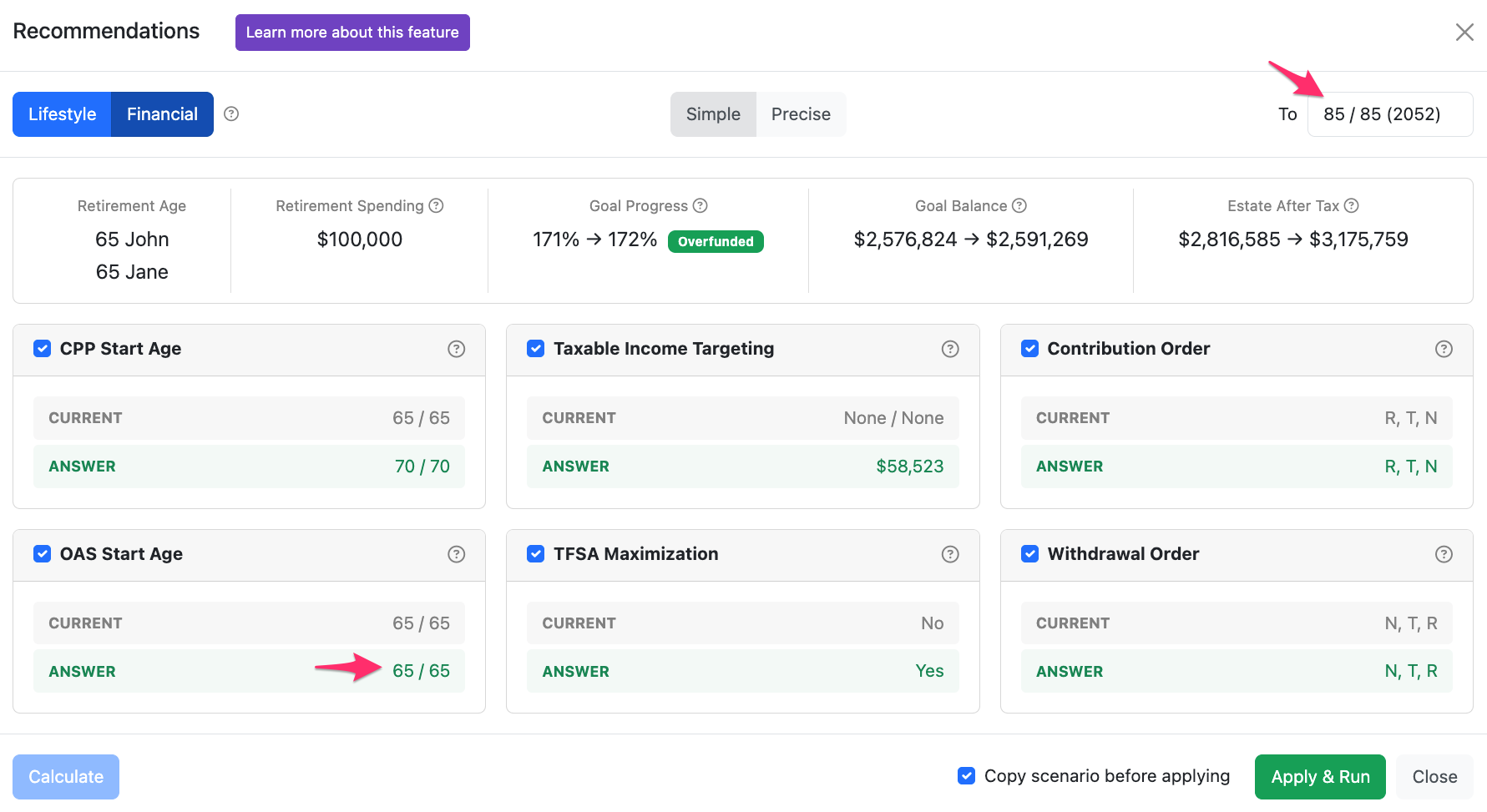
Many scenarios in Snap are projected to age, 95 or 100. It's useful to project to these lengths to understand how clients would fare if they lived that long. However, when planning the best approach for their retirement, it may make sense to find the strategy that maximizes the Estate After Tax in an earlier year, when they're more likely to pass away. Depending on their current age, health, gender, and relationship status, this could range from 80 to 85. You can change the age that is used for calculating and comparing the Estate After Tax from the top-right corner of the modal.
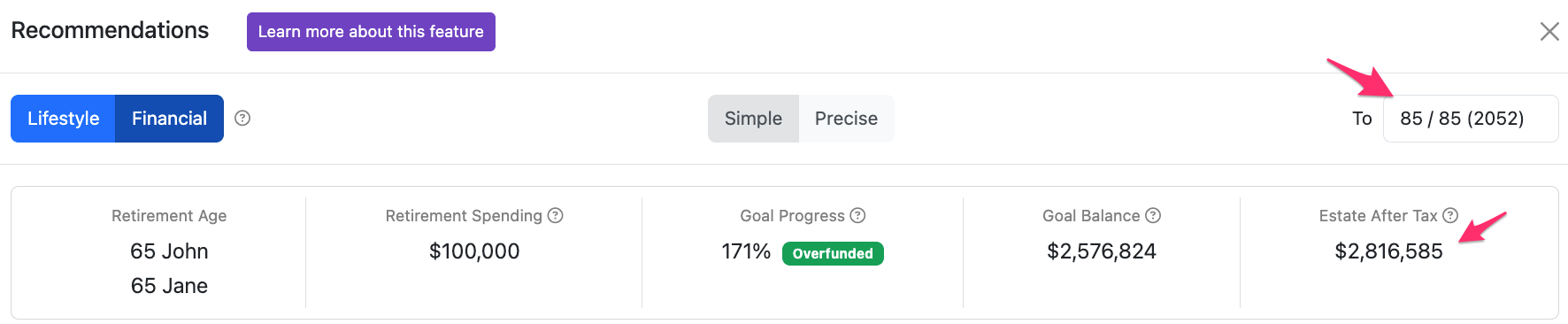
As you adjust the age for comparison and click Calculate, you'll see that the recommended strategies may change. For instance, with a projection to age 100 it makes sense to defer CPP and OAS. With the Estate After Tax being calculated and optimized at age 85, it may only make sense to defer CPP (given the higher deferral benefit).
- 12
-
Choosing a calculation mode
There are two calculation modes available to help find an optimal strategy for your clients. The default setting is Simple, and you can switch to Precise as needed.

There are important differences in the benefits and use cases for each mode outlined below.
- Simple (Default mode) - This mode evaluates a range of common strategies (e.g., deferring government benefits, accelerated registered withdrawals to smooth out taxable income) to find efficient and actionable steps clients can take to improve their outcomes. Typically takes less than 1 minute to complete.
- Precise - This mode uses a mathematical algorithm to explore a broader range of strategies, learning the best options for the client along the way and continuing to build and improve on each new approach. Because of the random sampling used in the process to explore a broad range of options, in rare cases, running the calculation a second time may result in a different solution. Typically takes 10 to 30 minutes to complete.
| Simple | Precise |
|---|---|
| Provides answers based on a range of common strategies. | Uses a mathematical algorithm to explore a broader range of strategies. |
| Typically completes in under a minute. | Typically takes 10 - 30 minutes to complete |
| Will provide the same answer when re-run. | May provide a different solution after re-running based in rare cases. |
| Can typically achieve 90% of the improvement in the Estate After Tax in 3% of the time taken using the Precise mode. Saves time by exploring discrete CPP Start Ages for example, 60, 65 and 70. | Explores a broader range of strategies, learning the best options along the way and improving with each new approach. For example, it considers the full range of CPP Start Ages from 60 - 70. |
| Very useful for quick optimizations while working on your projections. | If you have time after you've finalized your projections, can be used to find a more specific action plan. |
The following table summarizes the different outputs of the two modes for a sample client file.
|
|
Simple | Precise |
|---|---|---|
| Estate After Tax |
Increases from $2,816,585 to $3,175,759 (an improvement of $359,174) 89% of the improvement from the Precise mode |
Increases from $2,816,585 to $3,220,035 (an improvement of $403,450) |
| Recommendations |
|
|
| Click the image to enlarge to full screen |
|
|
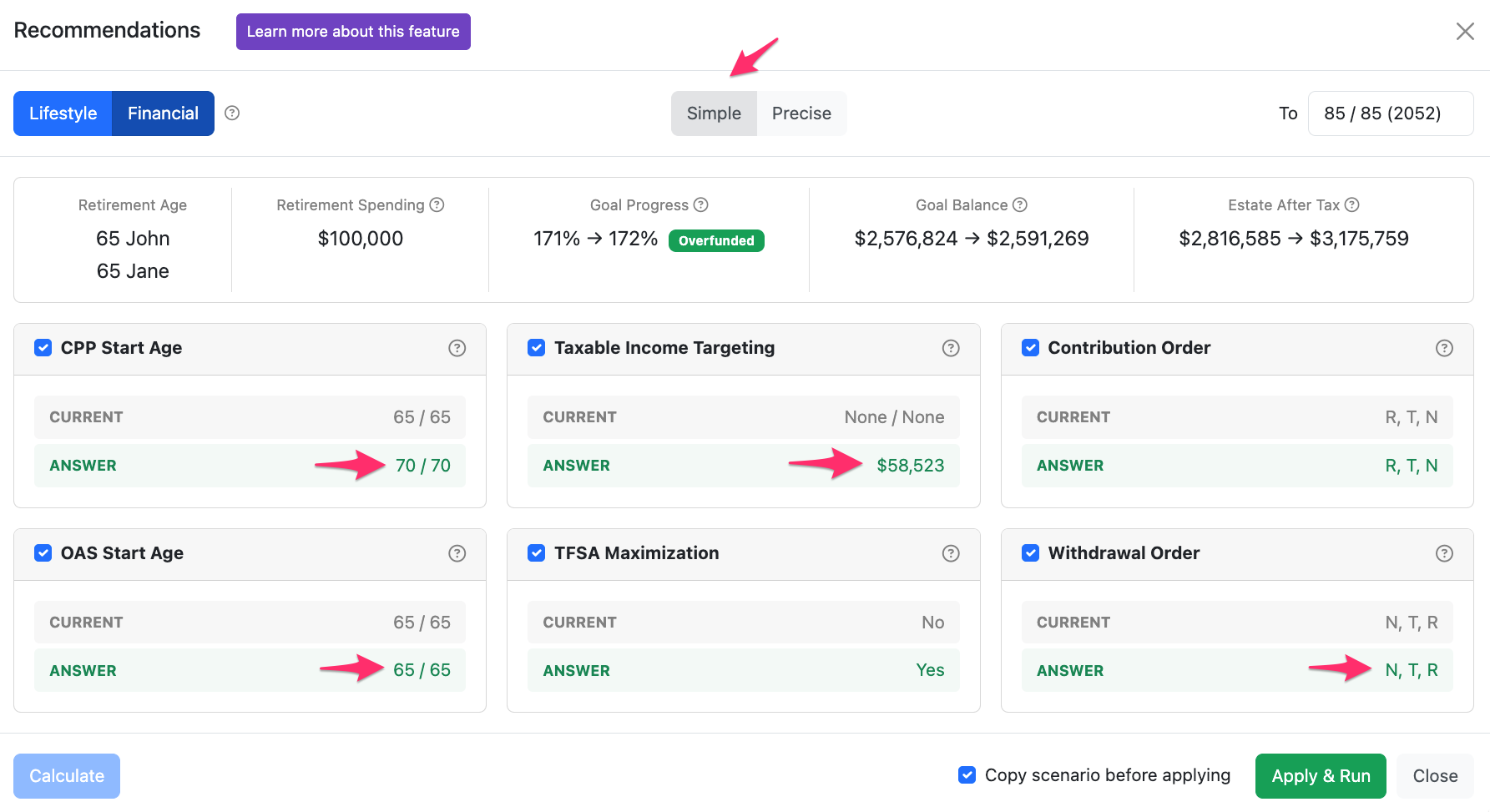
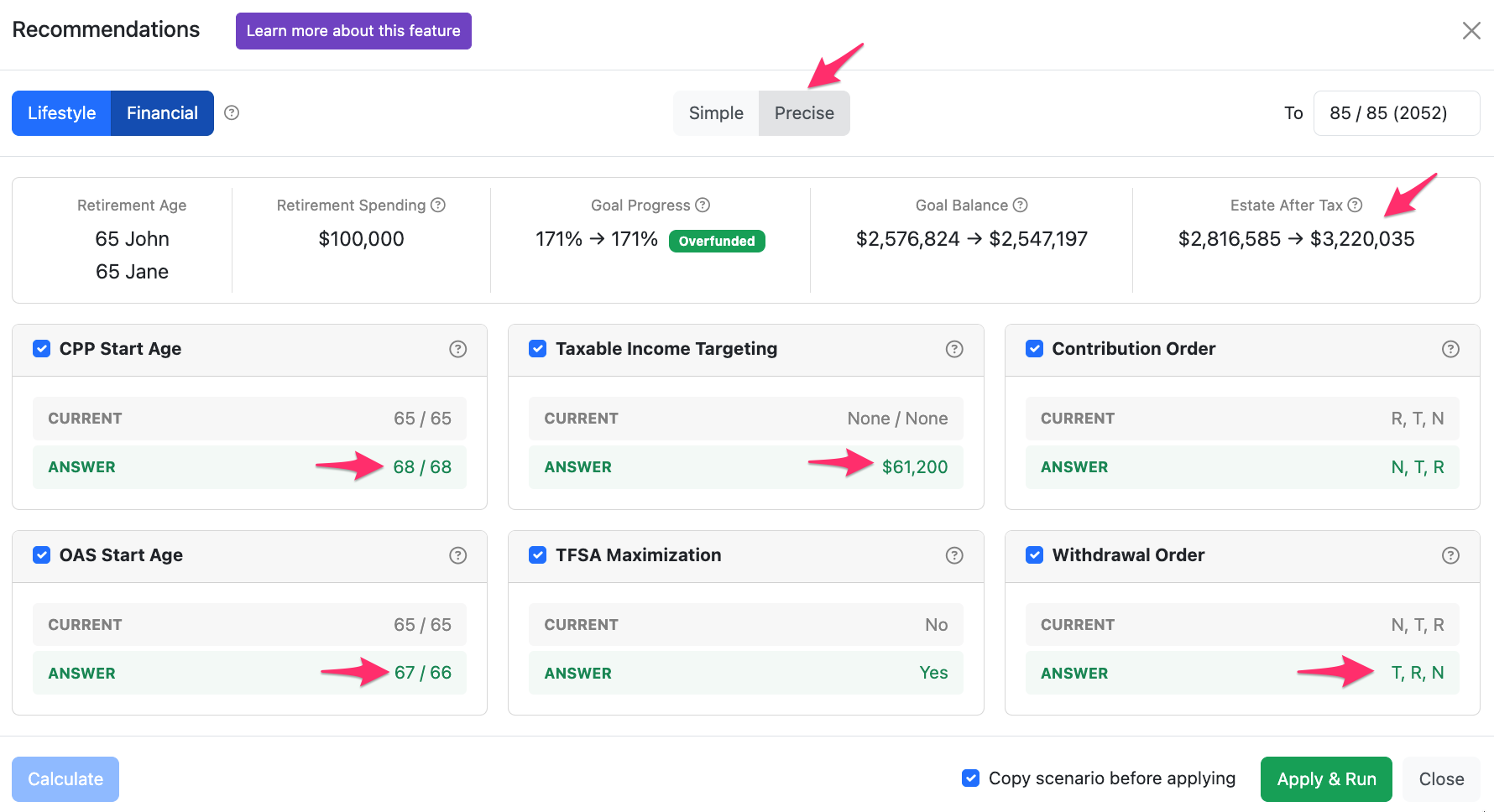
The two modes find similar results with differing levels of time taken and degree of specificity in the recommendations provided.
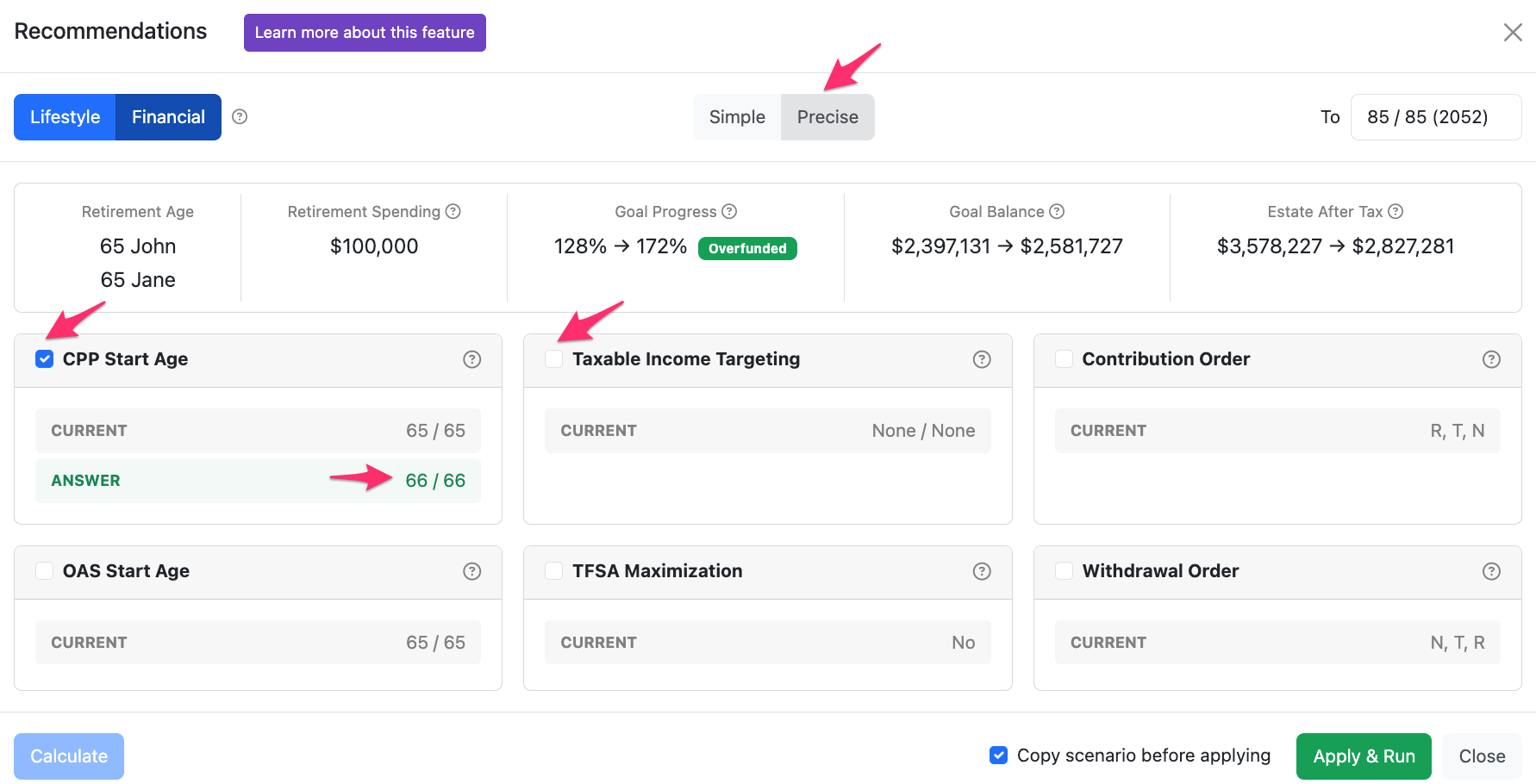
A primary use case for the Precise mode is when you're looking to calculate just one or two settings at a time. For instance, if you want to find the best CPP Start Age(s) for your projection, you can deselect everything aside from CPP Start Age, then select Precise, and Snap will try all possible Start Age combinations for the Client and Spouse (if applicable) to find the best ages.
While the Financial Recommendations feature is calculating, you won't be able to close the modal. If you'd like to continue working on a different scenario, you can open a new tab in your browser and access any other scenario to continue planning while the calculation runs. If you access the scenario that is currently being calculated, you'll see a warning message that the scenario cannot be edited.
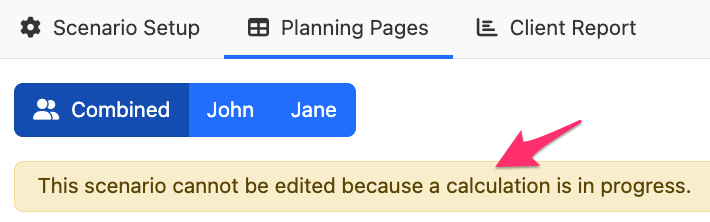
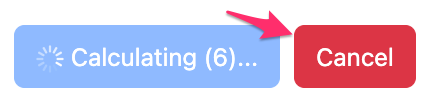
If you close your session or are timed out, Snap will continue calculating and your recommendation will be available once complete when you next access the projection (provided that you don't make any subsequent changes or Run the scenario). Calculating more than one Financial Recommendation at a time will limit your ability to interact with other functionality in Snap until the calculations are complete. You can Cancel the calculation if you'd like to make a change to the scenario or no longer require the recommendation.
The most important thing to emphasize with Snap's Financial Recommendations tool is that it evaluates combinations of strategies simultaneously instead of one at a time. This approach takes longer to calculate but results in better outcomes for the client. As an example, if you find the best CPP Start Age for the current scenario, it may be 66 (as shown in the image above). However, if you change the Taxable Income Target, AND the CPP Start Age, AND the OAS Start Age at the same time, then the optimal strategy may be to take CPP at 68 (as shown in the first Precise calculation above). This means that Snap can find better outcomes that wouldn't be possible through solving one variable at a time.
We'll continue to review the results of the Simple and Precise calculations to balance speed, accuracy, and actionability of the Recommendations provided. If you have any questions or feedback please reach out to our Customer Success team by email at [email protected] or phone at 1-888-758-7977 Option 1.
- 13
-
Calculating an optimal strategy
There are many possible strategies a client could implement for their finances. They could defer government benefits and start taking RRIF right away. They could start taking OAS and defer CPP/QPP, while topping up their TFSA and spending their non-registered investments.
The best approach will depend on many factors including:
- Life expectancy.
- Rates of return.
- Other income sources.
- Spending needs.
- Estate goals.
Snap calculates the Estate After Tax for your client's projection using different strategies (e.g., defer CPP, realize $50K of taxable income per year, top up the TFSA from non-registered accounts) to help you find an optimal option. The set of strategies are designed to cover a wide range of client circumstances to help improve your client's outcomes in most cases.
While the different strategies are being calculated, you'll see the best option up to that point displayed and labelled Tentative.
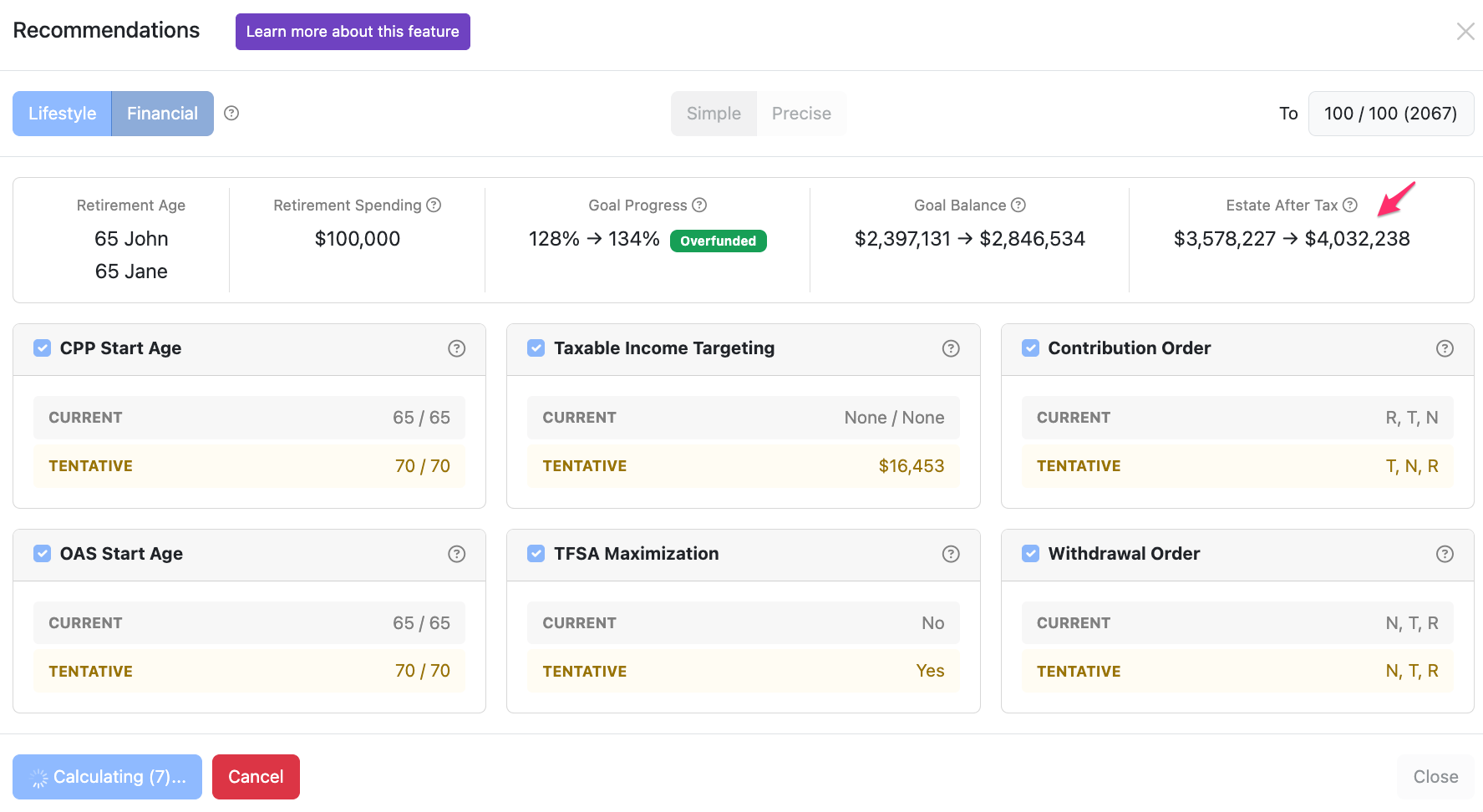
While the Financial Recommendations feature is calculating, you won't be able to close the modal. If you'd like to continue working on a different scenario, you can open a new tab in your browser and access any other scenario to continue planning while the calculation runs. If you access the scenario that is currently being calculated, you'll see a warning message that the scenario cannot be edited.
If you close your session or are timed out, Snap will continue calculating and your recommendation will be available once complete when you next access the projection (provided that you don't make any subsequent changes or Run the scenario). Calculating more than one Financial Recommendation at a time will limit your ability to interact with other functionality in Snap until the calculations are complete. You can Cancel the calculation if you'd like to make a change to the scenario or no longer require the recommendation.
Once all strategies have been calculated, the page will update to the best option and display Answer.
If an optimal strategy has already been applied to the projection, or there are factors impacting the plan that prevent Snap from automatically adjusting the required settings, you'll occasionally receive a notice that a better alternative couldn't be found.
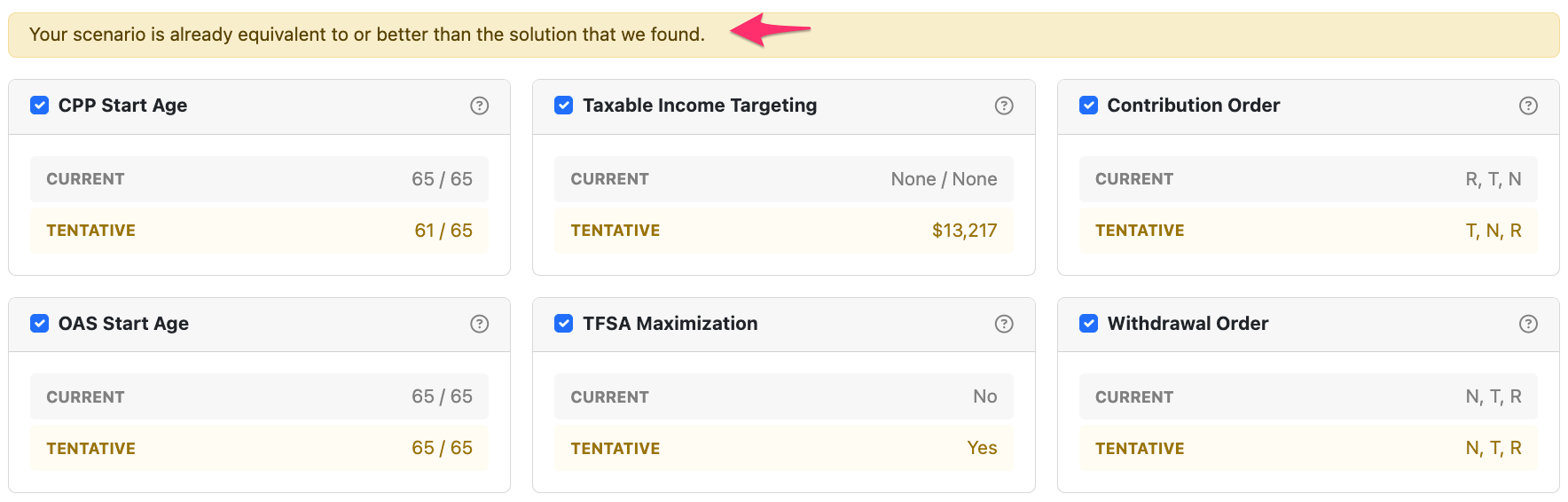
Before you click Calculate, you can toggle which decisions you would like to include by checking the box in the top-left corner. For instance, if your client is unwilling to defer OAS, you can uncheck it from being included in the recommendation.
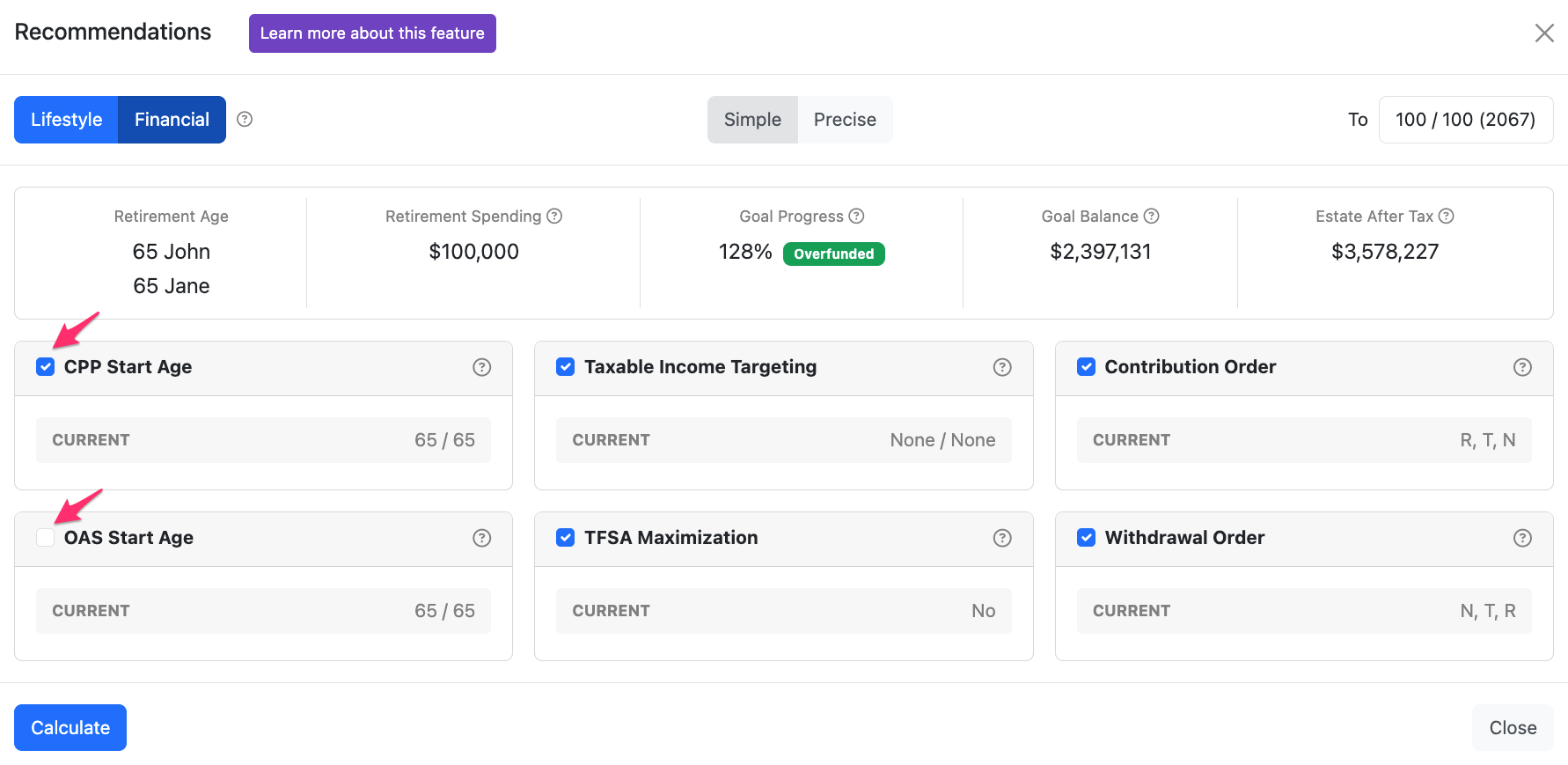
In this example, Snap will calculate the highest Estate After Tax while only adjusting the CPP Start Age and Taxable Income Targeting assumptions.
- 14
-
Important notes and best practices
a. Ensure the Run Scenario button is green
If you notice that the Recommendations button is greyed out, this likely means that you must first click Run Scenario to update your projection and apply any recent changes to your plan.

Once you've clicked the yellow Run Scenario button to apply the changes you'll be able to access the Recommendations feature.

b. Minimize overrides on Financial Assets
The Financial Recommendations feature works by testing alternative strategies for your scenario. If you've overridden Financial Assets on the Planning Page, this will limit Snap's ability to try different options. For instance, if you've entered an accelerated RRIF meltdown by overriding $50,000 per year of Withdrawals, Snap won't be able to change this in its alternative scenarios.
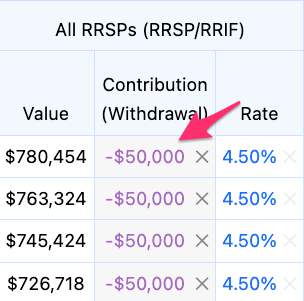
Before you Calculate the Financial Recommendation, you'll want to clear any overrides that aren't mandatory.
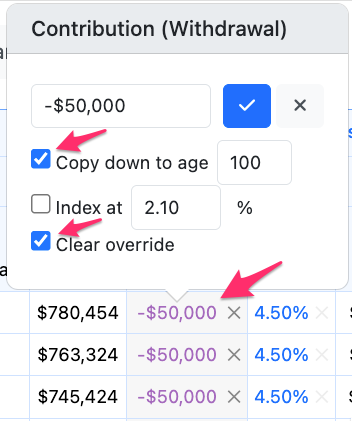
Several examples of mandatory overrides (ones that you want to stay in place in any alternative case) include:
- Overrides that prevent Snap from withdrawing out of an account that the client doesn't want to use. For instance, some clients have illiquid investments, or a balance that has been set aside to give to grandchildren in the future.
- Overrides that the client is doing regardless of any recommended strategy. For instance, if they're taking the annual LIF maximum and will do so regardless of a recommended alternative, you can leave the overridden withdrawals in place and Snap will find the best strategy to compliment those withdrawals.
There's no issue with having overrides in your projection when calculating a Financial Recommendation. They will just limit the range of possible strategies Snap can consider.
c. Ensure each client has a non-registered account
As a best practice in Snap, if the client doesn't already have a non-registered account in the projection, you're best to add a $0 account on the Scenario Setup -> Assets page.
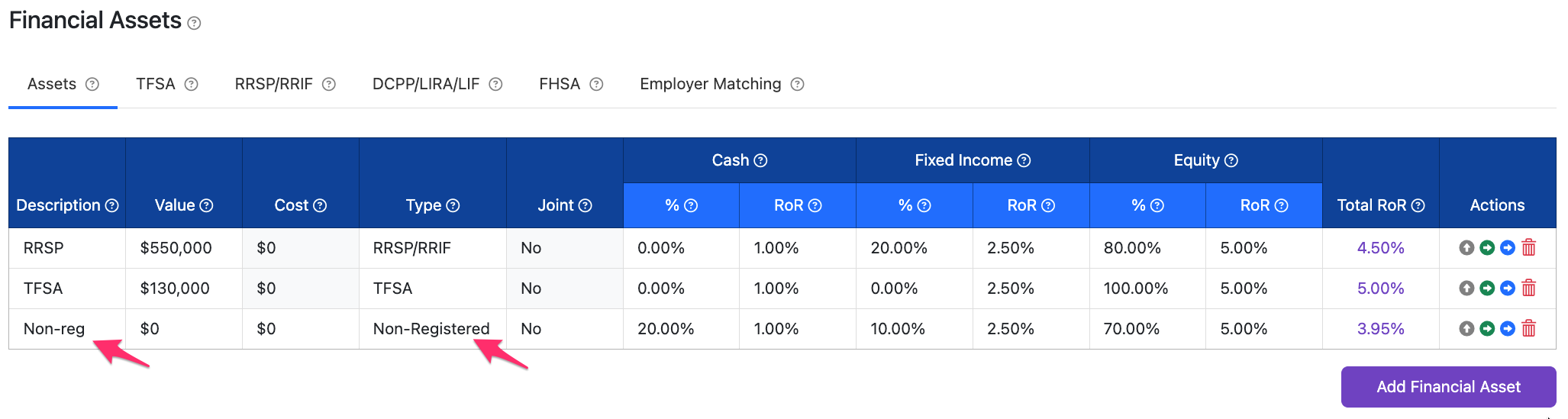
This provides Snap a location to allocate future surplus cash flow, and allows Snap to use the Taxable Income Targeting feature effectively.