Taxable Income Targeting
Managing contributions and withdrawals to target a specific taxable income and marginal tax rate can significantly reduce your clients’ tax burden. With Snap, you can set an annual Taxable Income Target for each year of your projections, and Snap will automatically adjust cash flow to stay as close to that target as possible.
In this article:
- 1
-
Video Overview
Here is a 12-minute video overview to see the feature in action.
- 2
-
Enabling the Taxable Income Targeting feature
You can enable the Taxable Income Targeting feature from the Taxable Income column header on the Planning Pages using the gear icon. If the Tax section is collapsed, you will need to first expand it by clicking the blue box with the white arrow to the right.


Once you enable the feature and click Save, a Target column is added to the Planning Pages. From the individual Planning Pages, you can enter a Target Taxable Income for each client in each year of the projection, beginning when the feature is enabled.

When the feature is first enabled in your projection, the Target value defaults to the Actual Taxable Income from the plan before enabling the feature. This ensures nothing changes when you first turn on the feature. You will then want to customize the Target values for each spouse from the individual Planning Pages.
- 3
-
Setting Taxable Income Targets
On the individual Planning Pages, you can click the dollar value in any year beginning at your selected Start Age. You can then enter a value, with the option to copy that Target to the Spouse (if applicable), copy the value into the future, and either index the value at a custom rate or indicate if it's in real dollars.

In most cases, you'll want to set the Target to the same value for each client by selecting Copy to Spouse. This allows Pension Income Splitting (if applicable) to help reduce the client's total household taxes payable. In rare cases, for instance, if you're trying to minimize OAS clawback in the household or you have surplus cash to contribute to registered accounts, you may wish to set the Target to different values for each client.
You can copy the Target down for the length of the projection, or set different values throughout.
Snap assumes that tax brackets are indexed over time with the General Inflation Rate in your projections. If you wish to maintain a specific and consistent Marginal Tax Rate you can enter a Real Dollar (current dollar) Target. You'll do this by checking In real dollars. This will automatically index each year's Target by the General Inflation Rate.
In this example, we're entering a real dollar value of $50,000, and Snap indexes it by the General Inflation Rate automatically.

Alternatively, you can enter a Nominal Dollar (future dollar) Target. In this case, you'll leave the In real dollars unchecked. This provides the option to keep the Target static over time by just copying down, or you can index the nominal value by a desired percentage.
In this example, we're entering a nominal dollar value of $50,000 with no assumed indexing.

- 4
-
Sample strategies
Common strategies that use Taxable Income Targeting include:
a. Maintaining a consistent Marginal Tax Rate.
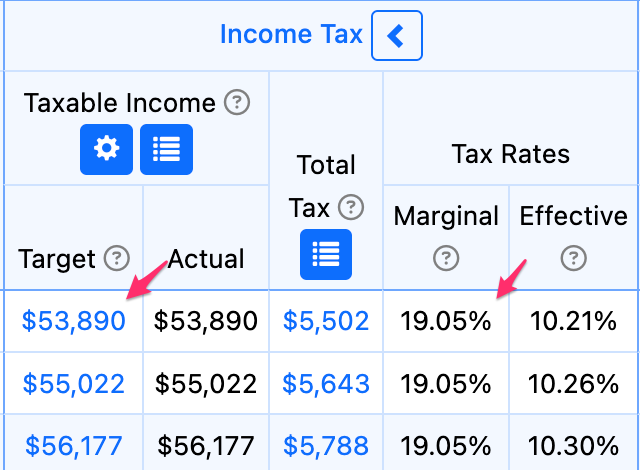
You may select the top of the lowest taxable income bracket for your client's province or territory. For instance, the first $53,890 of Taxable Income in Ontario is taxed at 19.05%. You may choose to withdraw additional registered money early in retirement to take advantage of the lowest bracket.
b. Minimizing OAS Clawback.
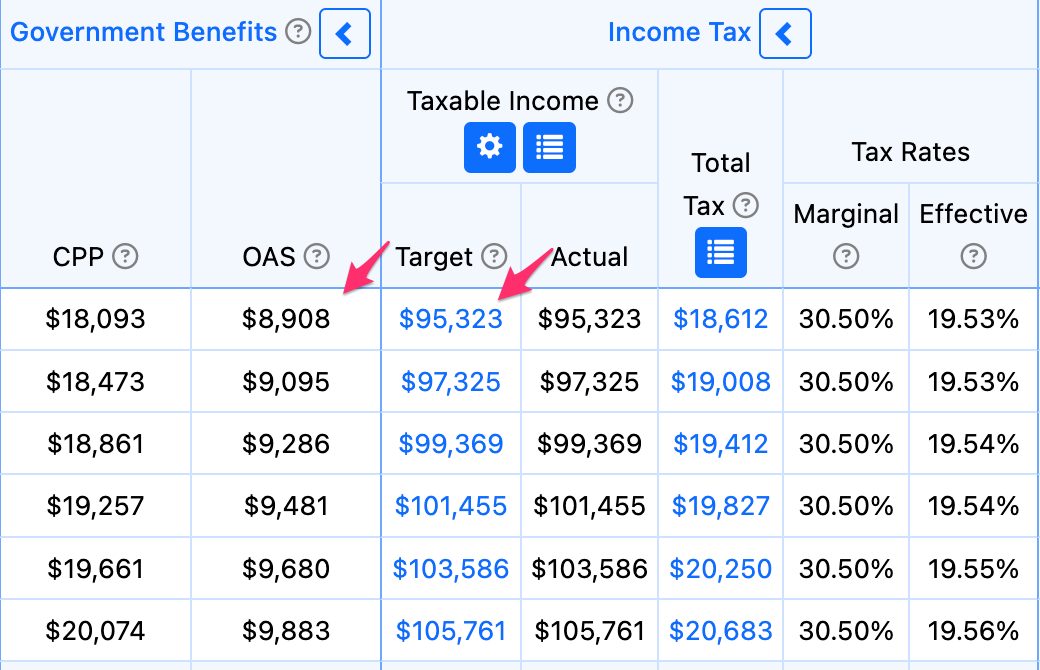
You may select the bottom of the OAS Clawback threshold ($95,323 as of 2026) to prevent your client from reaching the 15% clawback.
- 5
-
Illustrating the benefits of your strategy
You can use the Comparing Scenarios tool to determine the optimal Target for your client's circumstances and to demonstrate the value that they're receiving by working with you.
In the following client case, we've created two scenarios. Scenario 1 uses the default Cash Flow Management (CFM) Order for withdrawals of non-registered, TFSA, and registered accounts. Scenario 2 uses the same CFM Order and withdraws extra registered money to help the client reach the top of the lowest tax bracket in Ontario.
The Taxable Income Targeting approach increases the projected Estate After Tax in almost all future years. At the largest difference, there's a $250K advantage for the second scenario using the Target.

- 6
-
Projection settings required for best results
The Taxable Income Targeting feature is typically used to withdraw extra money from registered accounts to bring your client's Actual Taxable Income up as close to the Target as possible. To ensure this feature works efficiently, you'll want to include non-registered and TFSA Financial Assets in your projection that Snap can use to allocate surplus cash flow that may be created from registered withdrawals. If the client doesn't have an existing non-registered or TFSA, you can add a new account on the Scenario Setup -> Assets page with a $0 Value.

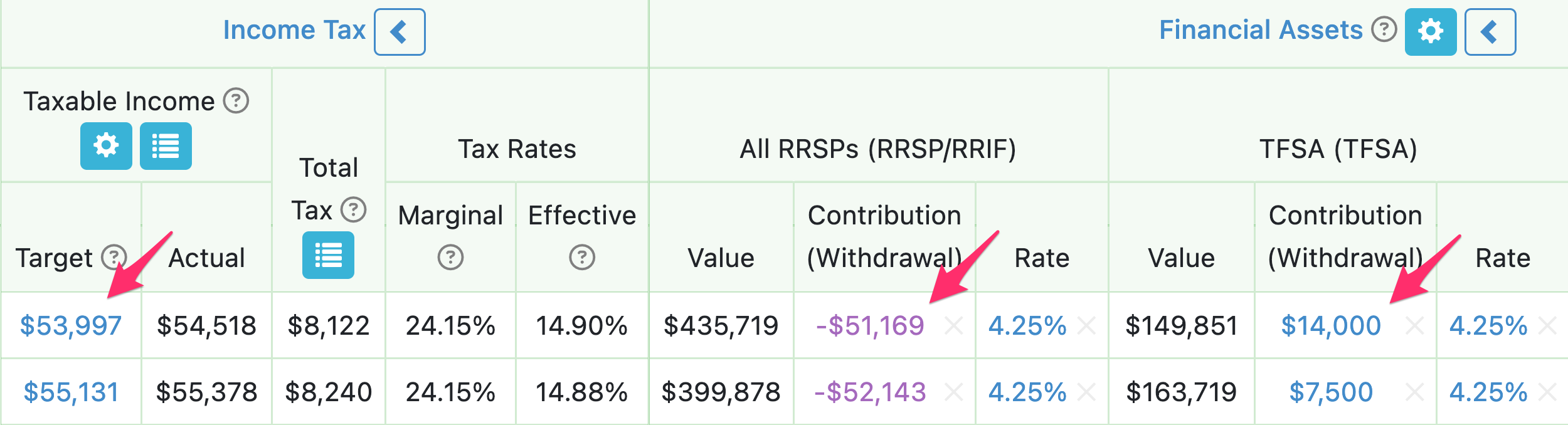
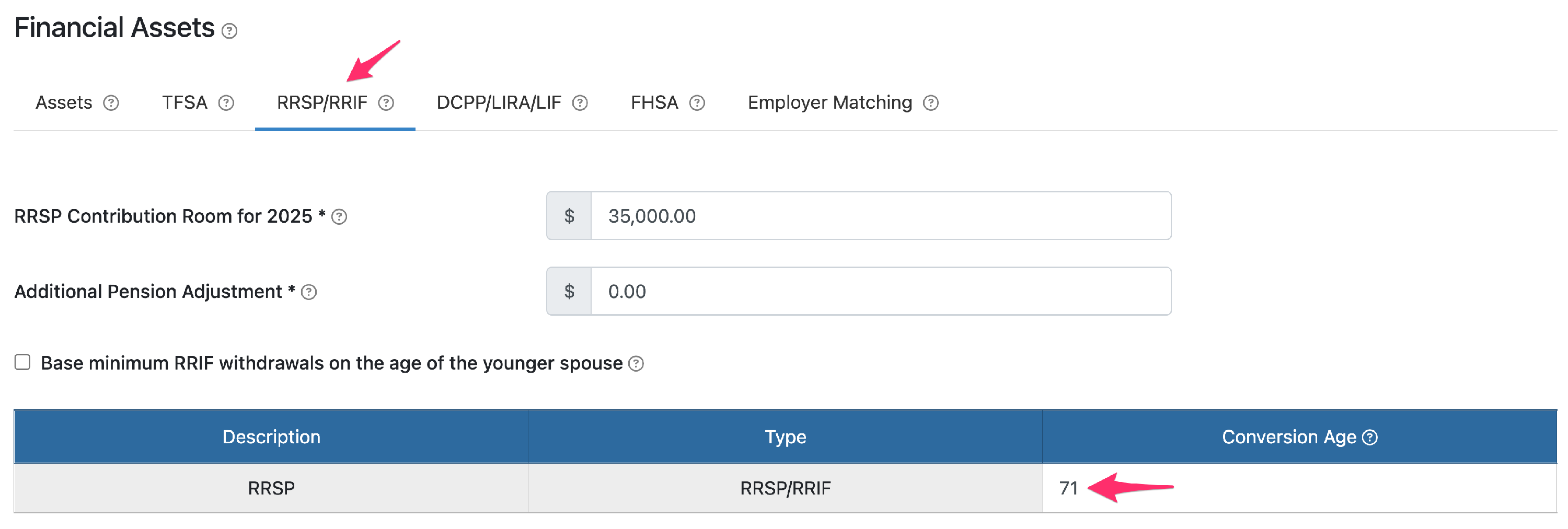
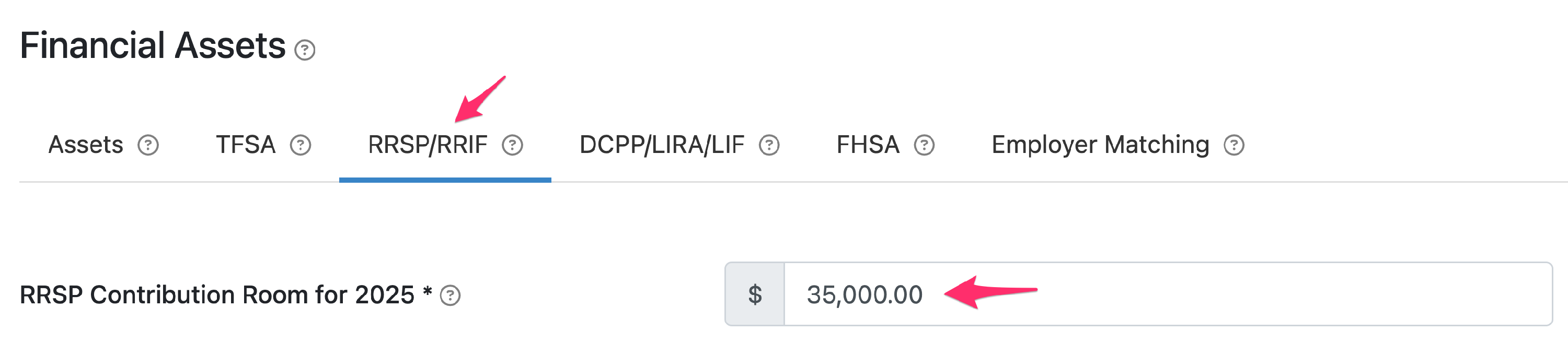
The feature can also be used to make registered contributions to bring the client's Actual Taxable Income down as close to the Target as possible. In this case, Snap will use available cash flow for the year (if the Cash Flow Management (CFM) is turned on) to contribute up to the available Contribution Room. If there isn't enough surplus cash flow for the year, Snap will withdraw from non-registered accounts and TFSAs to make additional contributions. You can set the RRSP Contribution Room on the Scenario Setup -> Assets -> RRSP/RRIF page.

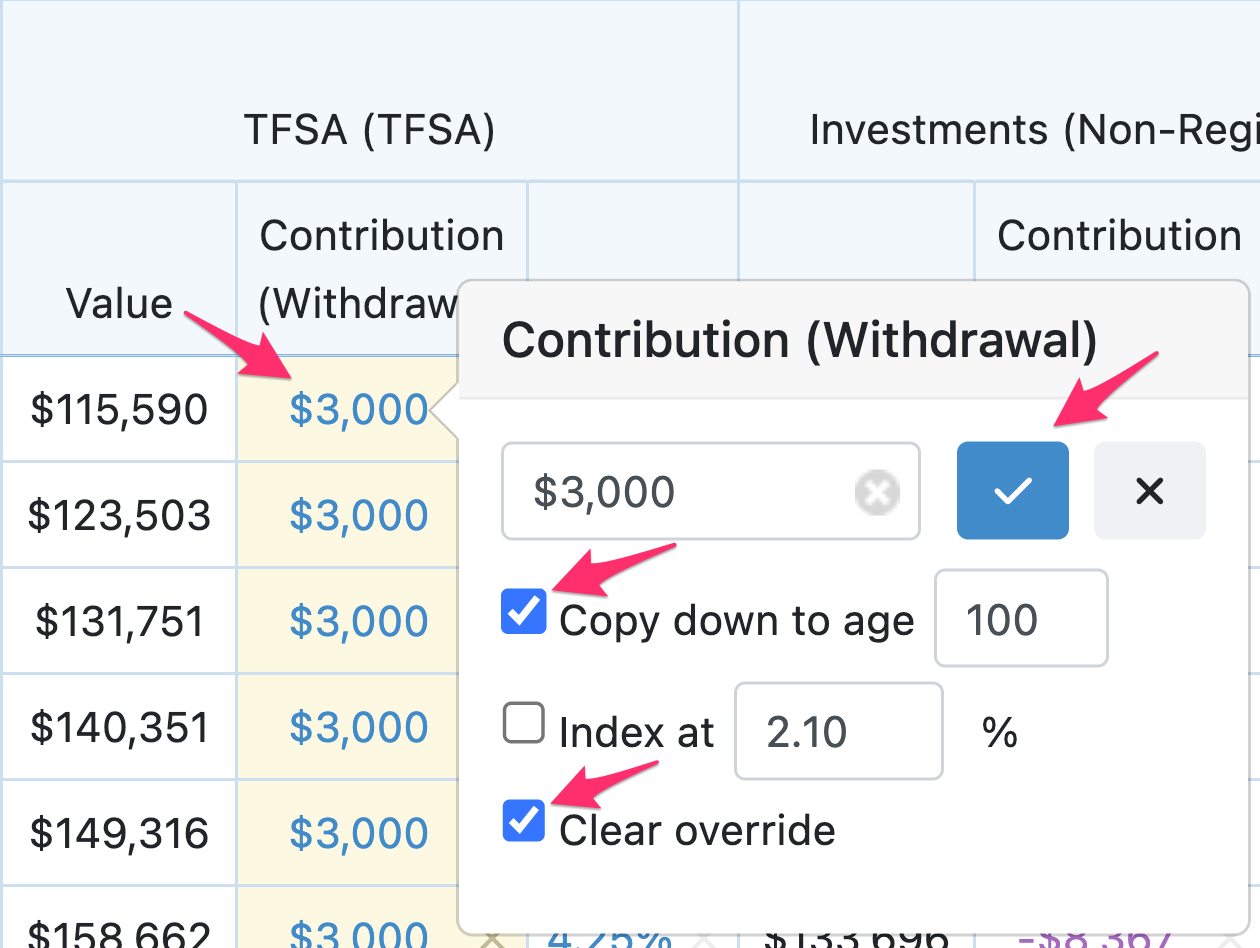
In addition to having the Financial Assets in the projection, you'll want to ensure that they aren't overridden on the Planning Page. Overrides provide you with final control of how cash moves into and out of Financial Assets. If you have an override on an account, it prevents Snap from using it within automated features such as Taxable Income Targeting. You can clear overrides to provide Snap control over the accounts.
The last consideration is whether your registered accounts have been converted as of a specific year of the projection. On the Scenario Setup -> Assets -> RRSP/RRIF page, you can set a Conversion Age for each account that determines when the RRIF minimum will start. Snap is also unable to contribute to the account once it has been converted to a RRIF.