(WEBINAR) 🎯 Creating simple projections with Snap’s newest features (Feb 12, 2025)
In this webinar we focus on recent changes in Snap and tips on using the most popular tools to efficiently create simple projections for your clients. We'll also discuss ways to present information from Snap to your clients using the Planning pages and Client Report.
During the webinar we created several projections to demonstrate how to:
- Create a current state illustration for a couple approaching retirement.
- Use popular tools (e.g., Recommendations, Scenario Comparison) to save time and compare outcomes.
- Present the information to clients in a digestible and actionable way.
CHAPTERS:
00:00 Introduction and Initial Client Data Entry
06:40 Expenses and Incomes
13:00 Assets and Debts
18:52 Government Benefits
20:55 Individual Planning Pages
22:40 Contributing to Financial Assets
26:18 The Combined Planning Page
28:48 Charts
29:46 Defined Benefit Pension Plan Contributions
34:05 Using the Recommendations Feature
36:47 Comparing Scenarios
40:10 The Client Report
52:58 Q&A
Questions and Answers
Thanks for the many questions we received during the webinar. To help you learn from each other's questions, we are posting the answers below.
- What is Stress Testing and how does it work?
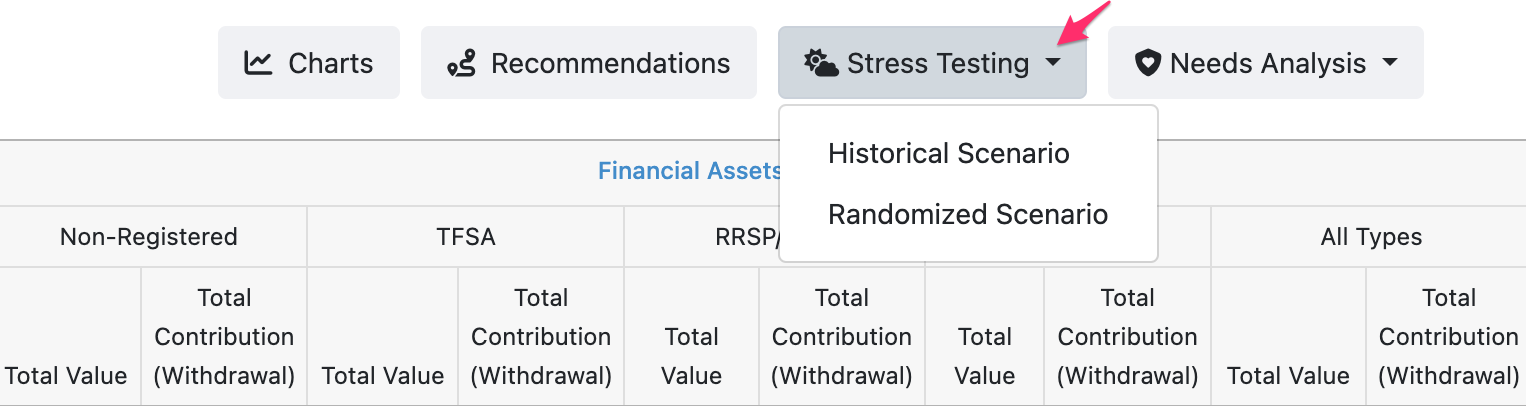
- Stress Testing is an add-on feature in Snap Projections that allows you to apply historical rates of return or randomly generated rates of return to a copied version of your projections to demonstrate volatility and sequence of return risk. Check out this short video to see it in action: Stress Testing 6-minute overview.
-
- How do we enter a joint last-to-die insurance policy?
- For joint policies, choose the person who is insured based on your projections and the Survivor Analysis within it — is one spouse projected to die before the other? If this is a joint last-to-die policy, set the insured person to the longest-living spouse in your projections.
- What are the assumptions around timing of contributions to Financial Assets?
- Contributions are assumed to occur at the end of the year.
- How can you reference projections from previous years?
-
If you click on a Client's name from the Clients page, you can see all of the projections that have been created for them over the years. You can still view a projection from 2021, 2022, etc. but you can't make edits. You can review the Scenario Setup, Planning pages and Client Report to view numbers provided/referenced previously.
It's only once you click the Rebase button that the plan is copied and a new scenario that starts in the current calendar year is created.
-
- Are the CPP and OAS numbers in present value and Net?
- CPP and OAS amounts in Snap Projections are adjusted for inflation and shown in future dollars, not present value. Additionally, these figures are represented in gross terms (before taxes).
- Where is the easiest spot in the software to make notes for yourself and for clients that can be produced? Example: Group RRSP value is accurate, but waiting to find out what the contributions are and the employer match. A spot for notes so you don't have to remember you are waiting for that info from the client.
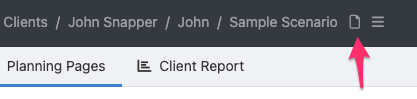
- You are able to add notes to any scenario by clicking on the Advisor Notes (page) icon at the top of your projection.
-